Whether you're preparing for an overseas trip or simply want a more flexible mobile option, Airalo makes it easy to go digital with a virtual SIM. Airalo's digital SIM (eSIM) technology offers a cost-effective and incredibly convenient solution to stay connected in over 200 countries and regions.Setting up and activating an Airalo eSIM is a straightforward process, though the exact steps vary slightly between iPhone and Android devices. This comprehensive guide will walk you through the entire process—from purchase to activation—of setting up your Airalo eSIM on your iOS (iPhone) or Android (Samsung, Google Pixel, etc.) device. Get ready to enjoy reliable, local rates without ever touching a SIM tray. Let’s make your next trip truly connected and worry-free!
✅ Before You Start (All Devices)
1. Check eSIM Compatibility
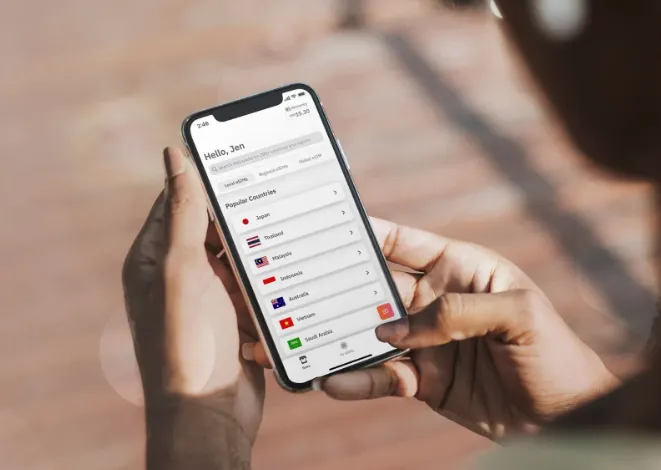
Before you install and activate your eSIM, make sure your device is:
- Carrier-Unlocked: This means that your device isn’t tied to a contract with a mobile carrier. If you bought your device outright, without any mobile service agreements, then your device is likely unlocked. If you aren't sure, I recommend calling your carrier to double-check!
- eSIM-Compatible: If you have a smartphone that was manufactured in 2018 or later, then your phone most likely supports eSIMs. Check Airalo's comprehensive list of eSIM-compatible devices to see if your phone is included.
2. Purchase Your eSIM
Now that you’ve confirmed your device is carrier-unlocked and supports eSIMs, it’s time to purchase an eSIM plan.
- Go to the Airalo website or download the Airalo app (available on iOS and Android).
- Choose an eSIM for the destination you're traveling to.
- Consider factors like the amount of data you need, the eSIM’s validity period, and its price.
3. Find Instructions
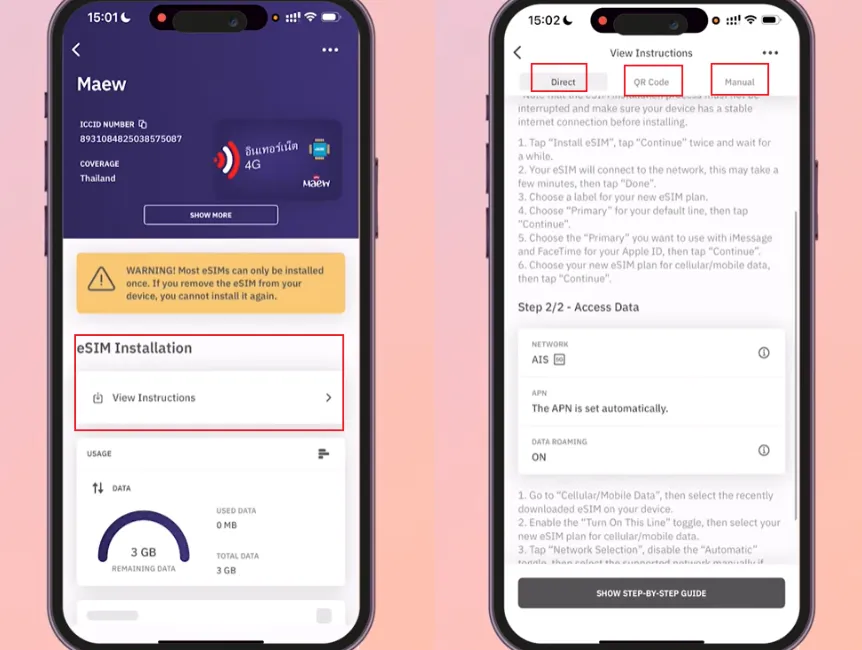
Go to “My eSIMs” in the Airalo app, select your purchased eSIM, and tap View Details > Installation Instructions.Airalo typically offers three installation methods: Direct, QR Code, or Manual.
- Direct: Go to the Airalo app and follow the step-by-step prompts to install your eSIM.
- QR Code: Scan a QR code to start the installation process.
- Manual: Enter your eSIM details manually in your device's Settings section.
The Direct method is the easiest and often preferred for iPhones and newer Samsung devices.
4. Ensure Connectivity
You must have a stable Wi-Fi or cellular connection from your primary SIM to install the eSIM.
📱 How to Install and Activate on iPhone (iOS)
1️⃣ Installation
-
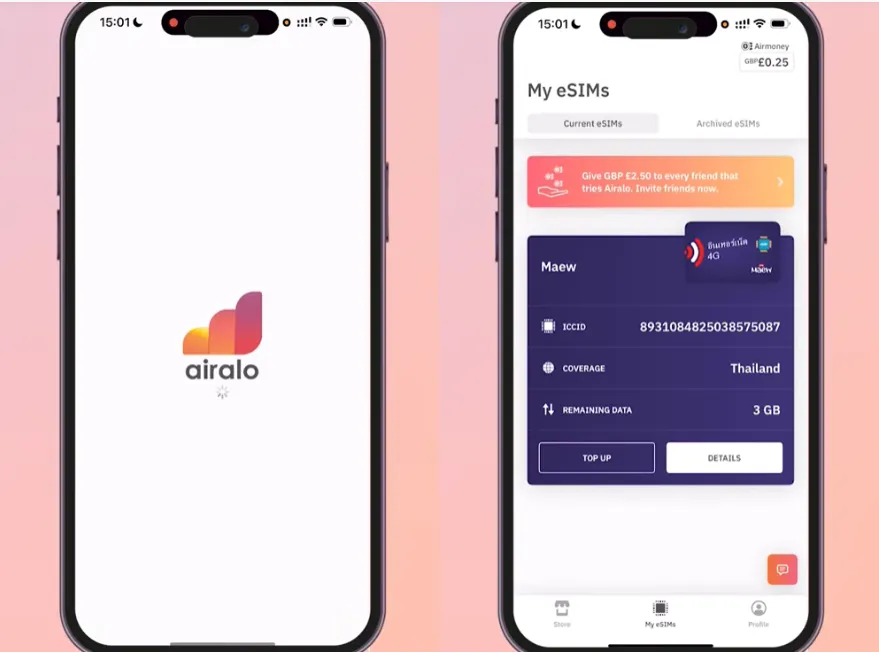
Open the Airalo App and go to My eSIMs.
-
Select the eSIM you want to install and tap View Details.
-
Tap Install eSIM (or follow the steps under View Installation Instructions).
-
Direct Method (Recommended): If available, select Direct, and tap Install eSIM. Follow the on-screen prompts and wait for the eSIM to be added.
-
QR Code Method: Select QR Code. You'll need to scan this code with a different device or a printed copy. Go to Settings > Cellular (or Mobile Data) > Add Cellular Plan > Scan QR Code.
-
Manual Method: Select Manual. Copy the SM-DP+ Address and Activation Code. Go to Settings > Cellular (or Mobile Data) > Add Cellular Plan > Enter Details Manually.
-
Option A: Direct Installation (Recommended)
-
Open the Airalo App and log in to your account.
-
Go to My eSIMs.
-
Select the eSIM you want to install and tap View Details.
-
Select the Direct tab and tap Install eSIM.
-
Your iPhone Settings app will open. Tap Continue twice to confirm the installation.
-
Wait a few minutes for the eSIM to activate. Tap Done.
Option B: QR Code Installation
-
On another device, open your Airalo QR code
-
On the iPhone: Settings → Cellular or Mobile Service → Add eSIM
-
Scan the QR code
-
Tap Add Cellular Plan
-
Enable Data Roaming for the eSIM
-
Set Cellular Data to the Airalo plan
>>How to install an Airalo eSIM via a QR Code on an iOS device?
Option C: Manual Installation
-
In the Airalo app, select the Manual tab and copy the SM-DP+ Address and Activation Code.
-
Go to your iPhone's Settings.
-
Tap Cellular (or Mobile Mobile Service).
-
Tap Add eSIM .
-
Tap Enter Details Manually at the bottom.
-
Paste the SM-DP+ Address and Activation Code you copied from the Airalo app.
-
Follow the prompts to label the line and complete the installation.
>>How to install an Airalo eSIM manually on an iOS device?
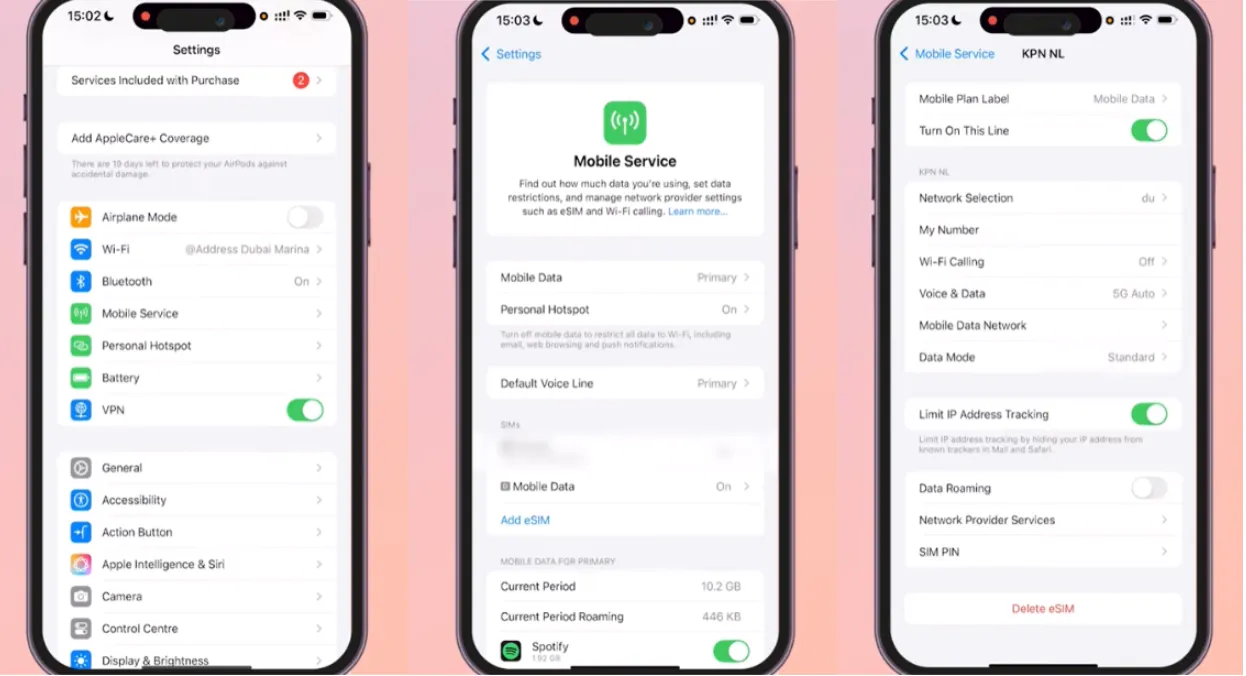
2️⃣ Setup and Activation
-
Label your eSIM: After installation, a prompt will appear. Give your new Airalo line an identifiable name (e.g., "Airalo - France").
-
Set Default Lines: Select your existing Primary line for calls and SMS/iMessage. Select your Airalo eSIM for Cellular/Mobile Data.
-
Check Settings: Go to Settings > Cellular (or Mobile Data/Service), and select your new Airalo eSIM.
-
Activate Data Roaming: Check the instructions in the Airalo app for your specific eSIM. Most Airalo eSIMs require Data Roaming to be ON to connect to the local network and activate.
-
Disable Primary Line Roaming (Crucial): To avoid unwanted charges from your home carrier while traveling, go to your Primary SIM line's settings and ensure Data Roaming is OFF.
-
Connect: Once you arrive at your destination, the eSIM should automatically connect to a supported network. If not, try toggling Airplane Mode OFF and ON to force a connection.
📱 How to Install and Activate on Samsung & Android Devices
Android devices (like Samsung Galaxy and Google Pixel) also offer Direct, QR Code, and Manual methods. The menu names may vary slightly by manufacturer.
1️⃣ Installation
-
Open the Airalo App and go to My eSIMs.
-
Select the eSIM you want to install and tap View Details.
-
Tap Install eSIM (or follow the steps under View Installation Instructions).
-
Direct Method (Samsung/Pixel): If available, select Direct, and tap Install eSIM. Follow the on-screen prompts.
-
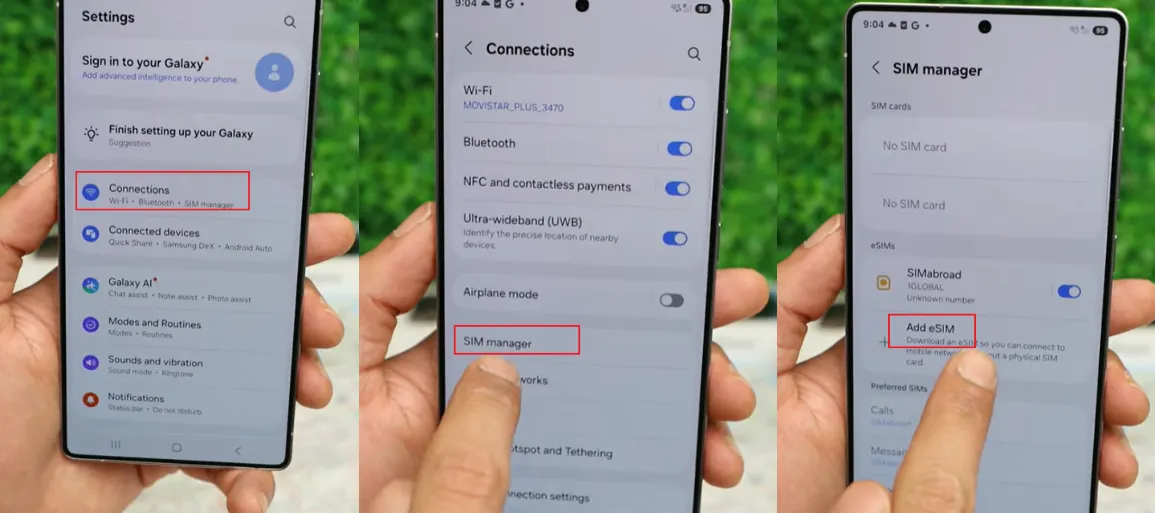
QR Code Method: Select QR Code. Go to Settings > Connections > SIM Manager (or Network & Internet > Mobile Network on Pixel) > Add Mobile Plan (or Add eSIM) > Scan QR Code.
-
Manual Method: Select Manual. Copy the SM-DP+ Address and Activation Code. Go to your device's settings to Add Mobile Plan/eSIM and choose Enter code manually.
-
2️⃣ Setup and Activation
-
Label your eSIM: Go to Settings > Connections > SIM Manager and rename your new eSIM to something clear (e.g., "Airalo Travel").
-
Set Mobile Data: In the SIM Manager, select your Airalo eSIM as your preferred Mobile Data line.
-
Enable Data Roaming: Go to Settings > Connections > Mobile Networks. Make sure Data Roaming is set to ON for your Airalo eSIM line. (This is necessary for most Airalo plans to work).
-
Check/Set APN: In the Airalo app under Installation Instructions, check if an APN (Access Point Name) is required. If so, you will need to manually enter this in your Mobile Networks settings.
-
Disable Primary Line Roaming (Crucial): To prevent unexpected charges, go back to the SIM Manager and ensure Mobile Data is OFF for your primary physical SIM/eSIM line while you are traveling.
-
Connect: When you arrive at your destination, your Airalo eSIM should connect automatically. If not, try toggling your phone's Wi-Fi and mobile data OFF and ON.
>>How to install an Airalo eSIM via a QR Code on Samsung Galaxy device?
>>How to install an Airalo eSIM manually on Samsung Galaxy device?
For more details on how to install your eSIM, follow the steps outlined in these links:
⚠️Crucial Note:
Your eSIM's activation policy tells you when its validity period will begin. There are two types of eSIM activation policies.Always check the "Activation Policy" in the Airalo App.
- eSIMs that activate when you connect to a supported network. Most eSIMs will activate when you turn on your eSIM line and connect to a supported network at your destination. Once you connect, your validity period will begin and you can start using your eSIM data.
- eSIMs that activate upon installation. Some eSIMs will activate immediately upon installation – even if you haven't left home. For eSIMs that activate immediately, we recommend installing them just before you travel so you can make the most of your eSIM data.
📌Troubleshooting Tips
1.No connection? Restart your device and check “Data roaming” is enabled.
2.Slow speeds? Manually select a network via Settings > Cellular/Mobile > Network Selection.
3.Installation issues? Manually enter eSIM details (found in Airalo app) if QR code fails.
4.Need help? Contact Airalo Support via the app or website.
5.Preventing roaming charges: To ensure your home line doesn't incur unexpected charges while traveling, make sure your primary/home SIM line is either:
- Disabled: Turn the line OFF completely in your cellular settings.
- Disabled Data Roaming: If you keep your home line on for calls/SMS, ensure Data Roaming is OFF for your primary SIM line, and that the Airalo eSIM is selected as the line for Cellular Data.
⁉️FAQ About Airalo eSIMs
You might have a few questions as you consider using an Airalo eSIM for your travel needs.
How long does it take to activate eSIM?
It takes no time!Depending on your eSIM's activation policy, it will either activate as soon as you install it or when you connect to a supported network at your destination. In both cases, you need to turn on your eSIM line and connect to a supported network to use your eSIM data.
Do I need to reactivate my eSIM when my package ends?
No need! Your Airalo package already has preloaded data, based on the package you buy. If your data runs out or your validity period expires, you can easily top-up in your Airalo App. If your eSIM package doesn’t have a top-up option, you can download another eSIM package to stay connected.
Can I use my SIM and eSIM together?
Absolutely! Most devices will allow you to use multiple SIMs and/or eSIMs at the same time. You can use your home network SIM for calls and SMS, and your eSIM for data.
When does my eSIM plan start?
Most Airalo eSIMs are Destination-Specific. This means the validity period (e.g., 7 days) starts the moment the eSIM connects to a supported network in your destination country.
Should I install it before I leave home?
Yes, you should. Install it while you still have a stable Wi-Fi connection at home. The plan won't start until you land and it connects to the foreign network (for Destination-Specific plans).
How long after purchase can I install it?
Most Airalo eSIMs must be installed within 30 days of purchase. If you wait too long, the eSIM may expire and you will need to purchase a new plan.
Do I need to turn on Data Roaming for the Airalo eSIM?
YES, absolutely. Airalo operates by connecting you to a local network as a guest, which your phone considers "roaming." You must turn on Data Roaming for your Airalo eSIM line for it to connect and work.
Do I need Wi-Fi to install an Airalo eSIM?
Yes.You need an internet connection to download the eSIM profile.
Why isn’t my Airalo eSIM working after activation?
Usually due to:
-
Data roaming OFF
-
Wrong APN settings
-
Not set as Mobile Data SIM
-
eSIM disabled in SIM Manager
-
Arriving in a country the plan does NOT cover
-
Device is carrier-locked
-
Temporary local network issues
What APN should I use for Airalo?
Depends on the plan. Common options:
-
internet
-
globaldata
-
vzwinternet (for certain US plans)
Check inside the Airalo app → My eSIM → Installation Details.