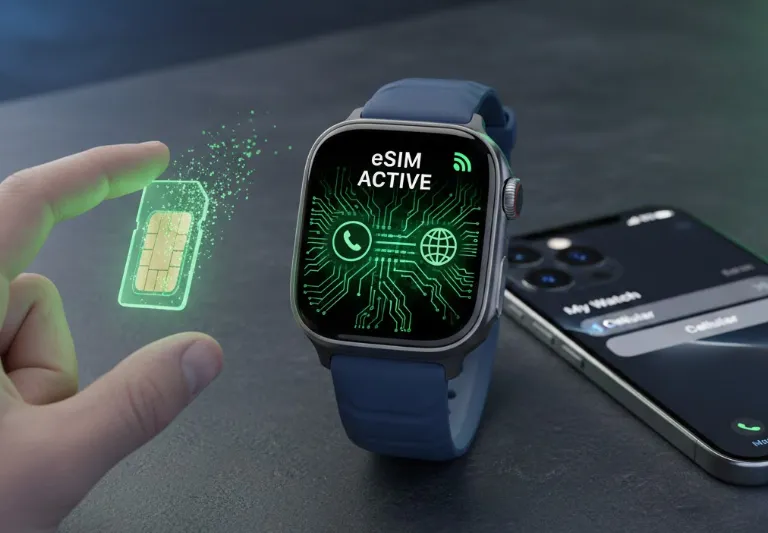
The Apple Watch with cellular connectivity has revolutionized the way we think about wearable tech, transforming a convenient wrist accessory into a truly independent device. Gone are the days when your smartwatch was solely dependent on your iPhone being nearby. Thanks to the integrated digital SIM technology—often referred to as an eSIM—your watch can now make calls, stream music, use maps, and receive notifications even when your phone is miles away. This untethered experience offers unparalleled freedom, whether you're out for a run, at the gym, or simply left your iPhone charging at home. However, the activation process and ongoing management of this feature can sometimes feel complex. How to set up an eSIM on the Apple Watch?How does eSIM work for Apple Watch?This article cuts through the confusion, providing a clear, step-by-step walkthrough for setting up and utilizing your watch’s independent cellular plan. From initial carrier setup to common troubleshooting tips, It cover all the necessary details to ensure you achieve seamless integration between your phone and wrist.
⌚ What is Apple Watch eSIM?
An Apple Watch eSIM (embedded SIM) is a digital SIM built into cellular-enabled Apple Watches that lets you activate a cellular plan directly on your watch, allowing it to make calls, send texts, and stream data without needing your iPhone nearby, creating true independence for activities like running or traveling. It replaces a physical SIM card with a digital profile from your carrier, linked to your phone number and plan, so you stay connected even if your phone is charging or left at home.
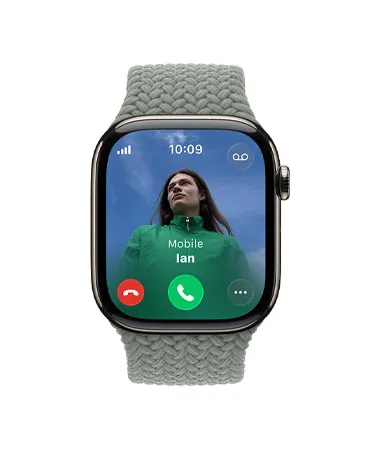
Key Functions & Benefits:
-
Phone-Free Connectivity: Receive calls/texts, stream music/podcasts, use maps, and get notifications even when your iPhone isn't with you.
-
Convenience: Perfect for workouts, errands, or anytime you want to travel light.
-
Seamless Integration: Works with your existing cellular plan (usually as a "multi-SIM" or shared number) after setup via the Apple Watch App.
-
Enhanced Safety: In an emergency, your watch can place calls to emergency services and share your location, even if you don't have your phone.
-
Uninterrupted Streaming: Stream Apple Music, podcasts, or audiobooks directly to your wireless headphones while you exercise or commute.
-
Family Setup: Use the eSIM functionality to set up an Apple Watch for a family member who doesn't have an iPhone (e.g., a child or older relative). In this special case, the watch can use a different carrier than your iPhone.
How It Works:
-
Carrier Support: Your mobile carrier must support Apple Watch eSIM (e.g., Verizon, AT&T, T-Mobile).
-
Activation: You set it up through the Apple Watch app on your paired iPhone, selecting "Mobile" or "Cellular" and following carrier prompts.
-
Digital Profile: Your carrier sends a digital profile (like a "replica SIM") to the watch's built-in eSIM chip, linking it to your plan.
⚙️ Requirements for Apple Watch eSIM Setup
Before you can activate eSIM service on your Apple Watch, you must ensure you meet all the necessary compatibility requirements.
1. Hardware and Software
|
Requirement |
Details |
|
Apple Watch Model |
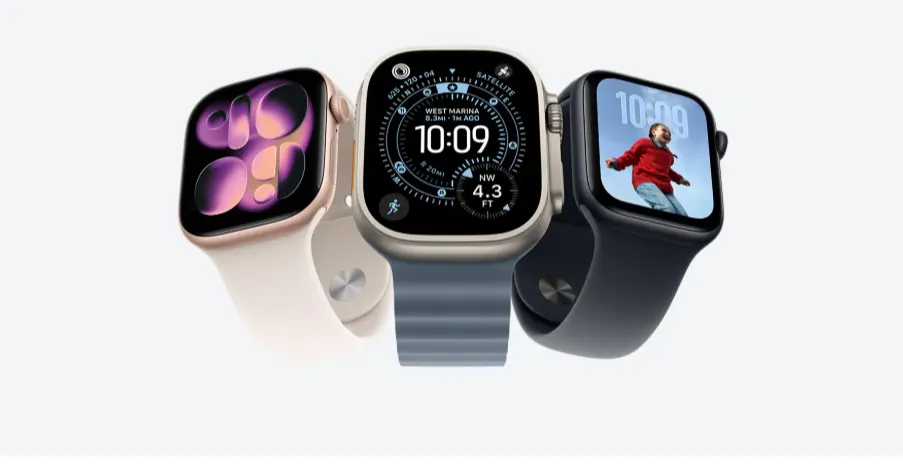
Must be a GPS + Cellular model. This includes Apple Watch Series 3 and later, Apple Watch SE (1st Gen and later), and all Apple Watch Ultra models. |
|
iPhone Model |
Must be an iPhone 6s or later (to support the required iOS and Dual SIM capabilities). |
|
Operating Systems |
Both your iPhone (iOS) and Apple Watch (watchOS) must be running the latest software version. |
|
Authentication |
You must be signed in to iCloud with your Apple ID, and Two-Factor Authentication must be enabled. |
-
Compatible Apple Watch: Not all Apple Watch models support cellular connectivity.Only GPS + Cellular Apple Watch models support eSIM,such as:
-
Apple Watch Series 11(GPS + Cellular)
-
Apple Watch Series 10(GPS + Cellular)
-
Apple Watch Series 9(GPS + Cellular)
-
Apple Watch Series 8(GPS + Cellular)
-
Apple Watch Series 7(GPS + Cellular)
-
Apple Watch Series 6(GPS + Cellular)
-
Apple Watch Series 5(GPS + Cellular)
-
Apple Watch Series 4(GPS + Cellular)
-
Apple Watch Series 3(GPS + Cellular)
-
Apple Watch SE (2nd generation)(GPS + Cellular)
-
Apple Watch SE (3rd generation)(GPS + Cellular)
-
Apple Watch Ultra
-
Apple Watch Ultra 2
- Apple Watch Ultra 3
-
-
Compatible iPhone: An iPhone 6s or later running the latest version of iOS.
2. Carrier Requirements
The most crucial step is verifying carrier support. Unlike setting up an eSIM on an iPhone, the Apple Watch cellular plan is typically a companion plan that shares your iPhone's number and must be from the same carrier as your iPhone.
-
Your wireless carrier must specifically support Apple Watch cellular service (often branded as NumberShare, One Number, or Companion Line).Apple Watch eSIM is supported by many major carriers worldwide. Examples include:
-
China: China Mobile, China Unicom, China Telecom
-
Europe: Vodafone, Orange, Deutsche Telekom
-
Pre-paid accounts or corporate/enterprise plans may not be supported. You must check with your carrier to ensure your specific plan is eligible.
-
Carrier add-on fees usually apply, often ranging from $5 to $15 per month.
>>Apple Watch Cellular / Carriers
🛠️ Step-by-Step Setup Guide
Follow these steps to activate eSIM on your Apple Watch:
Step 1: Check Requirements
-
iPhone paired with your Apple Watch
-
Same carrier supports cellular for your watch
-
Latest iOS and watchOS installed
If your Apple Watch is new, you should:
-
Place the Apple Watch on your wrist and turn it on.
-
Hold your iPhone near the watch and tap Continue when prompted.
-
Follow the on-screen instructions to pair (usually by aligning the watch face with the camera viewfinder on your iPhone).
-
Follow the prompts for setting up a passcode and logging in with your Apple ID.
Step 2: Set Up Cellular on Apple Watch
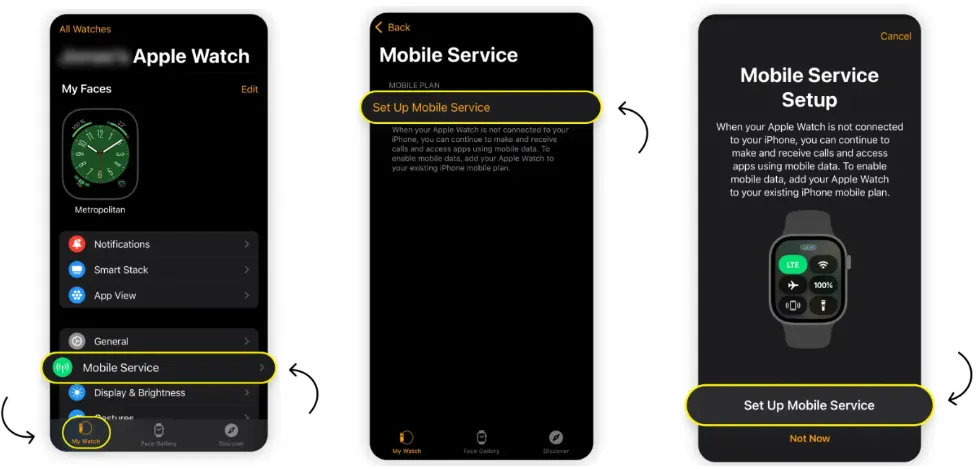
-
Open the Watch app on your iPhone.
-
“Cellular” or “Mobile service." > Set up cellular” or “Set up mobile service.”
-
Follow your carrier's on-screen instructions. This usually involves:
-
Logging into your carrier account (you'll need to be the account owner or manager).
-
Selecting or adding the Apple Watch to your existing plan (often for an extra monthly fee, e.g., $10).
-
Reviewing the terms and conditions.
-
Providing a 911 address if required.
-
The carrier will then digitally provision the eSIM profile onto your Apple Watch. This may take a few minutes.Once complete, your watch will show a cellular signal icon.
Step 3: Test the Connection
Once setup is complete, you can verify your connection status:
-
On the Apple Watch: Press the side button to open Control Center.
-
If the Cellular button is green, your watch is connected to the cellular network. The green bars indicate signal strength.
-
If the button is white, your cellular plan is active, but the watch is currently connected via Bluetooth to your iPhone or to Wi-Fi.
-
🔄 Management and Troubleshooting
1. Battery Consideration
Using the cellular connection for extended periods (especially streaming or GPS use) will drain the battery faster than relying on your nearby iPhone or Wi-Fi.
2. Dual SIM
If your iPhone uses Dual SIM (two phone numbers), your Apple Watch will typically mirror the primary line. You can manage which line the watch uses in the Cellular settings of the Watch App.
3. Managing and Transferring Your Plan
|
Action |
Steps |
|
Turn Cellular On/Off |
On your watch, open Control Center → tap the Cellular icon → toggle Cellular on or off. (Turning it off saves battery). |
|
Check Data Usage |
On your iPhone, open the Watch App → Cellular → scroll down to Cellular Data Usage. |
|
Remove a Plan |
On your iPhone, open the Watch App → Cellular → tap the circular (i) icon next to your carrier plan → Remove [Carrier Name] Plan. |
|
Transfer to a New Watch |
When pairing your new Apple Watch, you'll be prompted to transfer the existing cellular plan from your old watch during the setup process. If the transfer option doesn't appear, you may need to remove the plan from the old watch first and then contact your carrier. |
4. No Cellular Connection
-
Check Control Center for cellular icon.
-
Ensure you're in carrier coverage area.
-
Verify account is active and paid.
-
Reset network settings if needed.
5. Activation Problems
-
Restart both iPhone and Apple Watch.
-
Update to latest iOS/watchOS.
-
Remove and re-add cellular plan in Watch app.
-
Contact carrier if persistent.
6. Travel & International Use
-
Domestic roaming: Automatic with carrier agreement.
-
International roaming: Must be enabled with carrier.
-
Temporary plans: Some carriers offer short-term travel passes.
-
Airplane Mode: Cellular automatically disabled when enabled.
7. Family Setup (For Non-iPhone Users)
-
Allows family members without iPhones to use Apple Watch.
-
Requires Apple Watch Series 4 or newer with cellular.
-
Managed through family member's iPhone.
-
Separate cellular plan required.
💡 Keep in Mind:
-
To receive SMS, MMS, or third-party app push notifications on your Apple Watch when away from your iPhone, your paired iPhone must be powered on and connected to Wi-Fi or cellular.
-
The Apple Watch can store multiple eSIM profiles, but only one cellular number can be active at a time for calls, texts, and data.
💰 Apple Watch eSIM Plan Pricing Overview (US & UK Examples)
In most markets, major carriers offer the Apple Watch cellular service as a "connected device" or "wearable" line, which adds a fee to your existing monthly bill.
|
Carrier/Region |
Typical Monthly Cost (Add-on) |
Key Notes |
|
US Major Carriers (Verizon, AT&T, T-Mobile) |
$10 - $15 |
Often requires a one-time activation fee (e.g., $35-$40) and is subject to taxes/fees. |
|
US MVNOs (Visible, Xfinity, Spectrum, US Mobile) |
$5 - $10 |
Usually offer lower rates, sometimes bundled with their highest-tier phone plans. Availability for Family Setup may be limited. |
|
UK Major Carriers (Vodafone, EE, O2) |
£5 - £7 |
Often included in bundles or offered as a relatively low monthly add-on fee (sometimes called a "Connectivity Plan" or "Smart Watch Plan"). |
⚠️Disclaimer: The prices above are estimates gathered from current carrier offerings and are subject to change, promotions, taxes, and fees. Always check with your specific carrier for the final price.
Key Features of Apple Watch Cellular Plans:
1. Unlimited Talk and Text
All major carrier plans include unlimited talk and text (using your shared phone number) on the watch, even when away from your iPhone.
2. Data Usage
-
Shared Data: The watch data usage usually pulls from the same unlimited or capped data pool as your paired iPhone.
-
Low Consumption: Apple Watch data usage is typically very low, as it's mainly used for iMessage, Siri requests, loading small apps, and light music streaming. Heavy data users may notice the impact, but most users will not.
3. Number Sharing Technology
Carriers use branded technologies to enable the watch to use your phone's number:
-
AT&T: NumberSync
-
Verizon: NumberShare
-
T-Mobile: DIGITS
4. Family Setup Support
A critical feature to check is Family Setup. This allows you to set up an Apple Watch for a family member (like a child or elderly adult) who does not have their own iPhone.
-
This watch gets its own separate phone number and plan (though it's still managed by the main account holder's iPhone).
-
Support: Most major carriers (Verizon, AT&T, T-Mobile, Vodafone, EE) support Family Setup, but many Mobile Virtual Network Operators (MVNOs) like Xfinity Mobile or Visible do not.
⁉️ Common Issues & FAQs
Q1: Does Apple Watch support international roaming?
In most regions, Apple Watch does not support international roaming.Some carriers offer limited roaming, but coverage is not common — always confirm with your provider before traveling.
Q2: Can I have a different number on my Apple Watch?
No, it shares the same number as your iPhone.
Q3: What if my watch can’t connect to cellular?
Make sure the plan is activated, and your watchOS is updated. Restart both devices if needed.
Q4: Can I pair an Apple Watch with a different carrier from my iPhone?
No. Apple Watch cellular service must be activated using the same carrier as your iPhone.
Q5: How much does Apple Watch eSIM service cost?
Pricing varies by carrier and country. Typical costs include:
-
US/Europe: USD $5–$10 per month
-
Asia (e.g., China): ~¥10–¥20 per month
Most carriers use a shared data plan rather than a standalone plan.
Q6: Can I switch iPhones or change carriers after activating the eSIM?
Yes, but:
-
Switching iPhones: Re-pair the watch and re-activate cellular service.
-
Switching carriers: Remove the old plan in the Watch app → add a new plan from the new carrier.
Q7: Can Apple Watch be set up with eSIM without an iPhone?
No. You need an iPhone to pair, activate, and manage the Apple Watch. It cannot be activated independently.
Q8: Can I use 5G on my Apple Watch?
No. Apple Watch supports LTE and UMTS networks only, even if your iPhone has 5G.
This guide covers the essentials of Apple Watch eSIM functionality. Always check with your specific carrier for exact pricing, supported features, and setup requirements in your region.