For American mobile users, the plastic SIM card is becoming a relic of the past. eSIMs provide a streamlined, eco-friendly alternative that simplifies switching devices or carriers. Modern smartphones and US carriers make it increasingly easy to switch between physical SIMs and eSIMs. Most major carriers like Verizon, AT&T, and T-Mobile now support "on-device" conversion.Below is a clear, up-to-date US guide explaining how to convert a physical SIM to eSIM and eSIM back to physical SIM on iPhone, Samsung, and other Android phones, including carrier rules and common pitfalls.If you're wondering how to make the digital leap—or even switch back to a physical card for compatibility—this comprehensive tutorial covers everything.
SIM vs eSIM: Quick Comparison
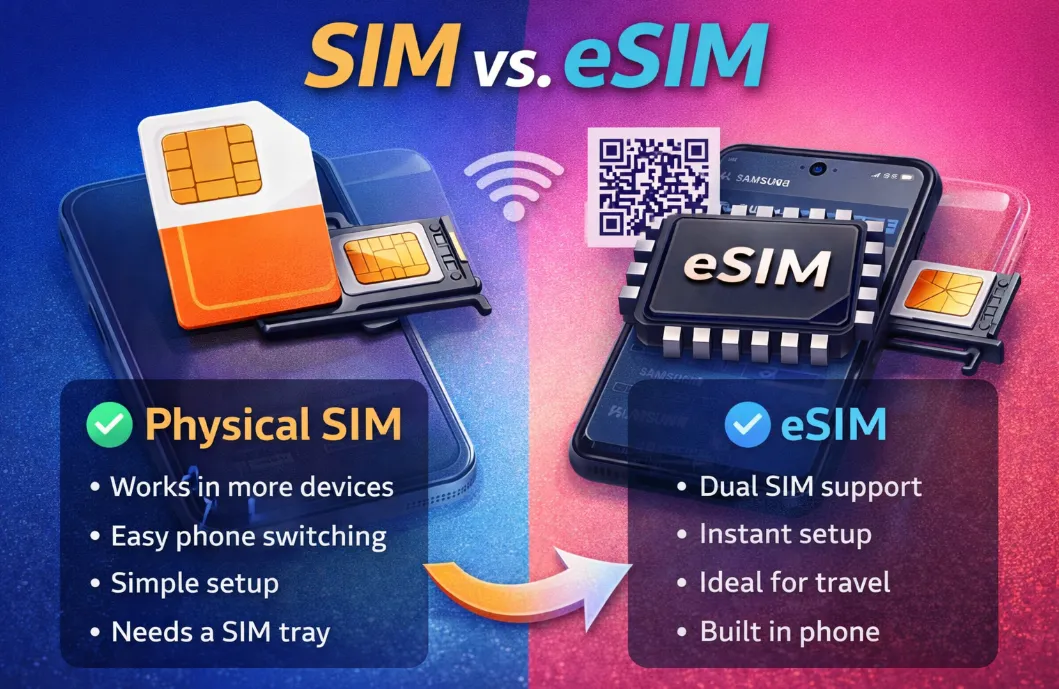
A SIM (Subscriber Identity Module) is a physical, removable card that connects your phone to a network, while an eSIM (embedded SIM) is a digital version built into your device, activated remotely via software, offering convenience for switching carriers and managing multiple lines without swapping cards, though it requires newer, compatible devices and carrier support. eSIMs save space, are more durable, and ideal for travelers, whereas physical SIMs offer easy swapping between older devices but require physical handling and mail.
|
Feature |
Physical SIM |
eSIM (Embedded SIM) |
|
Form |
Small plastic chip (Nano SIM). |
Built-in chip inside the phone. |
|
Activation |
Manual: Insert card into a tray. |
Digital: Scan QR code or use an app. |
|
Swapping Phones |
Easy: Just pop it out and into a new phone. |
Harder: Usually requires a "transfer" process. |
|
Switch Carriers |
Swap SIM |
Download profile |
|
Dual SIM Support |
Limited |
Excellent |
|
Travel |
Buy a local SIM card at the airport/store. |
Download a local data plan before you land. |
|
Security |
Vulnerable to physical theft/SIM swapping. |
More secure; cannot be removed if stolen. |
|
Multiple Lines |
Limited by physical slots (usually 1 or 2). |
Can store 5–10+ profiles (toggle as needed). |
|
Environmental Impact |
Plastic waste |
Eco-friendly |
Why you might prefer an eSIM?
-
Ultimate Travel Convenience: You can buy a data plan for a foreign country (like via Airalo or Saily) before you even leave home. As soon as you land, your phone connects to the local network—no more hunting for kiosks at the airport.
-
Dual-Line Management: You can have your personal number on a physical SIM and a work number on an eSIM, or use two eSIMs at once. This lets you toggle between them in settings without carrying two phones.
-
Better Security: If your phone is stolen, a thief can’t just remove the SIM card to stop the phone from being tracked. The eSIM is hardwired into the motherboard and typically requires your passcode to deactivate.
-
Space & Design: Newer phones (like the iPhone 14, 15, and 16 in the US) have removed the SIM tray entirely to make room for larger batteries and better water resistance.
Why you might prefer a Physical SIM?
-
Easy "Dead Phone" Recovery: If your phone screen breaks or the battery dies, you can simply move your physical SIM to an old backup phone and be reachable instantly. Transferring an eSIM from a broken phone often requires a call to your carrier.
-
Simplicity for Non-Techies: There are no QR codes to scan or apps to download. If the card is in the slot, the phone works.
-
Privacy: If you want to ensure your phone cannot be tracked via the cellular network, you can physically remove the SIM. An eSIM can only be "turned off" via software.
-
Legacy Support: If you frequently use older or budget devices, they likely don't support eSIM technology yet.
🔔 The Verdict:
-
The Power User: Go eSIM. The ability to store multiple profiles and switch carriers digitally is the modern standard.
-
The Frequent "Phone Swapper": Stick with a Physical SIM if your device still has a tray. It saves you the headache of re-registering your eSIM every time you switch handsets.
-
The International Traveler: Use a Hybrid approach. Keep your home number on your physical SIM and use the eSIM slot for cheap local data plans when abroad.
How to Convert a Physical SIM to an eSIM?
If your new phone no longer supports SIM cards, or you don't want to use them anymore, you can convert to eSIM instead.
What You Need Before Converting:
Before starting the transition, you should know that not all SIM cards can be converted to an eSIM. Here’s what you need to check beforehand:
-
Device compatibility: Ensure your phone is unlocked and compatible with eSIM.Most recent iPhones, Samsung Galaxy models, and Google Pixel phones are eSIM-ready. >>Search for phones that support eSIM
-
Carrier support: Not all mobile carriers allow SIM to eSIM conversion yet. It’s important to verify this with your provider.
-
An active US carrier line (AT&T, T-Mobile, Verizon, or MVNO): Very old SIM cards might not be eligible for transfer. In such cases, your operator might offer to replace it with a new one that can be converted.
-
Stable Wi-Fi or mobile data.
-
Have your account information and ID ready for carrier verification.
‼️ Important: It’s always a good idea to update your device to the latest software version before trying any conversion.
A. Convert a SIM to an eSIM on iPhone
✅ Method 1: Direct Conversion (iOS 16+)
If you own an iPhone XR, XS, or any newer model, you’re good to go. Apple has made converting easy directly from the settings:
-
Go to Settings > Cellular or Mobile Data(Service).
- Find your active physical SIM and tap on it.
-
Tap Convert to eSIM. (If you don’t see this, your carrier doesn't support on-device conversion).
-
Tap Convert Cellular Plan.
-
Confirm the conversion. Your physical SIM will deactivate once the eSIM is active.
-
Remove the physical SIM once the status says "Active."
In some cases, your carrier may require you to scan a QR code instead if this option doesn’t show up automatically.
✅ Method 2: Carrier QR Code
-
Contact your carrier (app, online, or phone).
-
Request eSIM conversion.
-
Receive QR code via email/text.
-
Go to Settings > Cellular or Mobile Data(Service) > Add eSIM Plan
-
Scan QR code with your iPhone camera.
-
Follow activation prompts.
B. Convert a SIM to an eSIM on Samsung
Samsung users are in luck too! Most recent Galaxy devices support eSIM. Here’s how to convert your SIM:
-
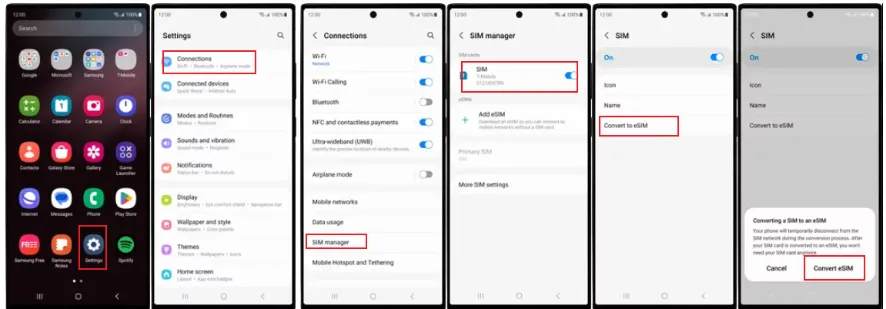
Go to Settings > Connections > SIM Manager.
-
Tap on your active Physical SIM.
-
Select Convert to eSIM.
-
Follow the on-screen prompts to download the digital profile.
-
Restart your phone if prompted and remove the old card.
C. On Other Androids (Google Pixel, etc.)
Most other Android devices do not yet have a "one-tap" conversion button.
-
Contact your carrier (via app, website, or support) and ask for an eSIM Activation QR Code.
-
Go to Settings > Network & Internet > SIMs > Add SIM.
-
Choose Download a SIM instead? and scan the QR code provided by the carrier.
Remember, not all Android phones have built-in conversion settings. Some might require a fresh eSIM profile from your operator.
How to Convert eSIM back to Physical SIM?
⚠️ Warning: You cannot do this entirely through your phone's software. You must obtain a new physical SIM card from your carrier.
Step 1: Get a Physical SIM
-
In-Store: Visit a Verizon, AT&T, or T-Mobile store. They can usually provision a new SIM card for your number on the spot.
-
Online/App: Log into your carrier's website or app (e.g., "My Verizon" or "T-Life") and order a replacement physical SIM.
Step 2: Activate and Swap
-
Obtain a SIM Card: Visit a carrier store or order a replacement SIM card online. In the US, stores usually provide these immediately, sometimes for a small fee ($0–$10).
-
Contact Carrier Support: You must tell them you want to "swap" your active eSIM back to a physical SIM. They will ask for the ICCID number printed on the new physical card.
-
Insert the Card: Once the carrier updates your account, your eSIM will lose signal. Insert the physical SIM into the tray.
-
Delete the eSIM Profile: To avoid confusion, go to your SIM settings and select Delete/Remove eSIM. This does not cancel your service; it only removes the old digital "key" from your phone.
‼️ Important: Only delete the eSIM profile from your phone (Settings > Cellular/SIMs > Delete eSIM) after you have confirmed the physical SIM is receiving signal.
Transferring Between Devices
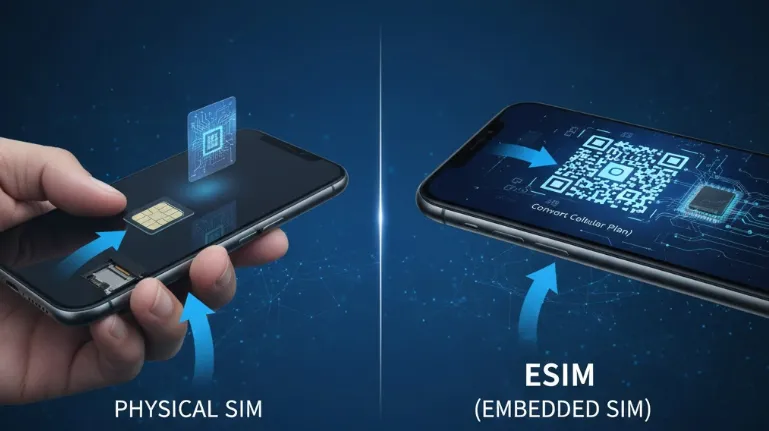 If you are moving from an old phone (Physical SIM) to a new phone (eSIM only, like iPhone 14/15/16/17):
A. iPhone to iPhone
During the initial setup of the new iPhone, place the old one nearby. It will prompt you to "Transfer from nearby iPhone." This moves the number and converts it to eSIM automatically.
B. Android to iPhone (iOS 16+)
-
On the new iPhone, go to Settings > Cellular > Add eSIM.
-
Choose Transfer from Android.
-
A QR code will appear. Scan this with your Android phone's camera.
-
Follow the prompts on the Android device to "Confirm Transfer."
C. Android to Android
-
On the new device, go to SIM Manager > Add eSIM.
-
Select Transfer SIM from another device.
-
Follow the verification code prompts provided by the Google/Samsung transfer tool.
Carrier-Specific eSIM Conversion Instructions (US)
Here’s carrier-specific guidance (US) for converting physical SIM ↔ eSIM and managing eSIMs on major networks — with steps that reflect current carrier processes:
|
Carrier |
Physical to eSIM Method |
Reverting to Physical SIM |
|
Use My Verizon app or iPhone/Samsung settings. |
Must visit a store or order a SIM online. No self-service "revert" in settings. |
|
|
Use Settings > Cellular > Convert to eSIM. |
Visit an AT&T store or call 611 to activate a new physical SIM kit. |
|
|
Use the T-Life app or device settings. |
Visit a store or use the "Change SIM" tool on the T-Mobile website. |
1. Verizon (Postpaid & Prepaid)
🔁 Converting Physical SIM → eSIM
Option 1 — My Verizon App / Online
This can be done without a QR code on many devices (iPhone 12+/Android).
-
Open the My Verizon app → Mobile tab → Get SIM or Change/Replace Device.
-
Choose the option to switch to eSIM and follow prompts to activate over Wi-Fi.
Option 2 — QR Code (if needed)
On some Android models, Verizon will provide a QR code to scan during setup.
Option 3 — In-store or Support
If online/app activation doesn’t work, a store can help generate and scan an eSIM profile.
🔁 Converting eSIM → Physical SIM
-
Visit verizon.com/sim
-
Order 4G/5G SIM kit (free)
-
OR Visit Verizon store
-
Activate: My Verizon app → "Activate or switch device"
-
OR Call 800-922-0204
‼️ Special Notes:
-
5G phones need specific SIM cards (ask for latest)
-
Business accounts may need different process
2. AT&T (Postpaid & Prepaid)
🔁 Converting Physical SIM → eSIM
Option 1 — myAT&T App / Online
-
Open the myAT&T app or visit your account online.
-
Go to Manage Device → Switch to eSIM / Change SIM.
-
Follow prompts to generate and download the eSIM profile.You may need Wi-Fi enabled during download.
Option 2 — In-store or Customer Support
If you can’t do it online, visit an AT&T store or call 611 for help. They can send a QR code or push the profile to your device.
‼️ Tip: Some older devices or prepaid plans must contact support rather than self-service.
🔁 Converting eSIM → Physical SIM
Request a replacement physical SIM via the AT&T app or at a store. Then insert that SIM to use instead of eSIM.
-
Visit AT&T store with ID
-
OR Call 611, say "SIM card"
-
Order replacement: att.com/devicehelp → "Get a new SIM"
-
Free standard shipping or $5 expedited
-
Activate: Call 888-898-7685 or use app
3. T-Mobile (including Metro & Prepaid)
🔁 Converting Physical SIM → eSIM
Option 1 — T-Mobile App
-
Open T-Mobile app.
-
"More" → "Line settings".
-
Select line → "SIM" → "Change SIM".
-
Choose "eSIM" → "Generate QR code".
-
Code sent to email on file.
Option 2 — T-Force (Twitter/FB)
-
Message @TMobileHelp on X/Twitter
-
Request eSIM conversion
-
Receive QR code via DM
Option 3 — Call Support
-
Dial 611 from T-Mobile phone
-
Say "eSIM activation"
🔁 Converting eSIM → Physical SIM
-
T-Mobile app: "Line settings" → "Change SIM" → "Physical SIM".
-
Free SIM cards at stores (no appointment needed).
-
Self-activate: 611 or t-mo.co/Activate.
-
Keep eSIM active until physical SIM activates.
💡 Quick Tips (All Carriers):
-
Make sure your phone has an eSIM-compatible OS and is unlocked if needed.
-
Use Wi-Fi during eSIM activation — it makes downloads smoother.
-
If the phone doesn’t show “Convert to eSIM,” check the carrier app before calling.
-
Always remove the old SIM only after eSIM is fully active.
-
Automated eSIM menus may not appear for older Android builds — use the carrier app or QR codes instead.
-
Some carriers bundle eSIM functionality only in postpaid accounts; prepaid may need support.
-
You may need to disable wireless account lock to swap SIMs on AT&T.
General FAQs
How long does it take to convert a SIM to an eSIM?
Converting from SIM to eSIM only takes a few minutes. It could drag out for a bit longer (for example, if you install your eSIM at the carrier store), but it still won’t take ages. A few taps, a short wait until your phone activates the eSIM, and you’re all set!
Can an eSIM be converted back to a physical SIM?
Yes you can convert an eSIM to a SIM, but keep in mind that you can’t do that by yourself. Contact your carrier and inform them you want to make a switch and they will walk you through the process. You can also buy yourself a new SIM card by from athe vendor you like, and install it manually. However, it doesn’t remove your current eSIM unless you deactivate it via your carrier.
Can I use SIM and eSIM at the same time?
Yes. Most modern phones support dual SIM (SIM + eSIM or eSIM + eSIM). This is common for work/personal numbers or travel.
Can I switch from SIM to eSIM without changing my number?
Yes. Your phone number stays the same. The carrier simply transfers your number from the physical SIM to the eSIM.
Can I convert old phones to eSIM?
No, eSIM requires specific hardware:
-
Must be built into device motherboard.
-
No adapters or workarounds exist.
-
Older phones will always need physical SIMs.
Can I have two phone numbers active at the same time?
Yes. Most modern phones (iPhone 13+ and Galaxy S24+) support Dual Active eSIMs. This means you can have your work number and personal number receiving calls and texts simultaneously without needing a physical SIM at all.
Does switching to eSIM affect my data speed or call quality?
No. An eSIM is simply a digital version of the same security credentials found on a plastic card. Your 5G speeds, signal strength, and call clarity will remain exactly the same.
What happens if I delete my eSIM profile by mistake?
Don't panic, but you will lose service immediately. You cannot simply "undelete" it. You must log into your carrier’s app or website to request a new activation. Most US carriers allow you to re-download the profile for free.
Q: Can I use an eSIM if my phone is still being paid off (locked)?
Yes, but only with that specific carrier. For example, if your iPhone is locked to AT&T, you can convert your AT&T physical SIM to an eSIM, but you cannot add a T-Mobile eSIM until the device is fully paid off and unlocked.
My "Convert to eSIM" button is missing. Why?
This usually happens for three reasons:
-
Carrier Restrictions: Some prepaid plans (like older Cricket or Metro plans) don't allow on-device conversion.
-
Business Accounts: If your phone is managed by your company, they may have disabled the "self-service" SIM swap for security.
-
Software Update: Ensure you are on at least iOS 16 or Android 14.
Can I transfer an eSIM to a new phone?
Yes, but the process depends on the carrier. iPhones support eSIM Quick Transfer, while Android often requires a new QR code.