Staying connected in Australia has never been easier thanks to eSIM technology. Whether you’re visiting Sydney, studying in Melbourne, or living long-term in Australia, using a digital SIM removes the hassle of physical cards and store visits. Vodafone Australia offers flexible mobile solutions with fast network coverage, competitive data packages, and simple setup for compatible devices. In this guide, you’ll discover how Vodafone’s eSIM works, where to obtain it, how to install and activate it, plus a breakdown of popular prepaid mobile options to help you choose the best plan for your needs.
What Is an eSIM?
An eSIM (embedded SIM) is a digital SIM profile built right into your phone or device — so you don’t need a physical SIM card to connect to Vodafone’s mobile network. It works just like a regular SIM once activated.
🔺 Benefits of an eSIM:
-
No plastic SIM card — easy digital activation.
-
Can have multiple plans installed (up to 5) but only one active at a time.
-
Works alongside a physical SIM on dual‑SIM phones.
-
Great for travel or using separate work/personal numbers.

Vodafone Australia offers a seamless eSIM experience for both new and existing customers. Whether you are a tourist visiting the country or a local looking to switch from a physical SIM, this guide covers everything you need to know.
Device Compatibility
Most modern smartphones released after 2019 support eSIM technology. To be sure, you can dial *#06# on your phone; if an EID number (32 digits) appears, your device is eSIM-ready.Here are the eSIM enabled phone list for Vodafone AU:
|
Apple |
Samsung |
|
Motorola |
OPPO |
|
iPhone SE 2020 |
Samsung Galaxy A36 5G |
Google Pixel 3a |
Motorola moto g34 5G |
OPPO Find X5 5G |
|
iPhone SE 2022 |
Samsung Galaxy A55 |
Google Pixel 3 |
Motorola moto g35 5G |
OPPO Find X5 Pro 5G |
|
iPhone XR |
Samsung Galaxy A56 5G |
Google Pixel 3 XL |
Motorola moto g56 5G |
|
|
iPhone XS |
Samsung Galaxy S20 4G |
Google Pixel 4a |
Motorola edge 50 fusion |
|
|
iPhone XS Max |
Samsung Galaxy S20 5G |
Google Pixel 4 |
||
|
iPhone 11 |
Samsung Galaxy S20+ 4G |
Google Pixel 4 XL |
||
|
iPhone 11 Pro |
Samsung Galaxy S20+ 5G |
Google Pixel 5 |
||
|
iPhone 11 Pro Max |
Samsung Galaxy S20 Ultra 5G |
Google Pixel 6a |
||
|
iPhone 12 mini |
Samsung Galaxy S21 5G |
Google Pixel 6 |
||
|
iPhone 12 |
Samsung Galaxy S21+ 5G |
Google Pixel 6 Pro |
||
|
iPhone 12 Pro |
Samsung Galaxy S21 Ultra 5G |
Google Pixel 7 |
||
|
iPhone 12 Pro Max |
Samsung Galaxy S22 5G |
Google Pixel 7 Pro |
||
|
iPhone 13 mini |
Samsung Galaxy S22+ 5G |
Google Pixel 8 |
||
|
Samsung Galaxy S22 Ultra 5G |
Google Pixel 8 Pro |
|||
|
iPhone 13 Pro |
Samsung Galaxy S23 FE 5G |
Google Pixel 9a |
||
|
iPhone 13 Pro Max |
Samsung Galaxy S23 5G |
Google Pixel 9 |
||
|
iPhone 14 |
Samsung Galaxy S23+ 5G |
Google Pixel 9 Pro |
||
|
iPhone 14 Plus |
Samsung Galaxy S23 Ultra 5G |
Google Pixel 9 Pro XL |
||
|
iPhone 14 Pro |
Samsung Galaxy S24 FE |
Google Pixel 9 Pro Fold |
||
|
iPhone 14 Pro Max |
Samsung Galaxy S24 |
Google Pixel 10 Pro XL |
||
|
iPhone 15 |
Samsung Galaxy S24+ |
|||
|
iPhone 15 Plus |
Samsung Galaxy S24 Ultra |
|||
|
iPhone 15 Pro |
Samsung Galaxy S25 FE |
|||
|
iPhone 15 Pro Max |
Samsung Galaxy S25 |
|||
|
iPhone 16e |
Samsung Galaxy S25+ |
|||
|
iPhone 16 |
Samsung Galaxy S25 Edge |
|||
|
iPhone 16 Plus |
Samsung Galaxy S25 Ultra |
|||
|
iPhone 16 Pro |
Samsung Galaxy Note20 4G |
|||
|
iPhone 16 Pro Max |
Samsung Galaxy Note20 5G |
|||
|
iPhone 17 |
Samsung Galaxy Note20 Ultra 5G |
|||
|
iPhone Air |
Samsung Galaxy Z Flip 4G |
|||
|
iPhone 17 Pro |
Samsung Galaxy Z Flip3 5G |
|||
|
iPhone 17 Pro Max |
Samsung Galaxy Z Flip4 5G |
|||
|
Samsung Galaxy Z Flip5 5G |
||||
|
Samsung Galaxy Z Flip6 |
||||
|
Samsung Galaxy Z Flip7 FE |
||||
|
Samsung Galaxy Z Flip7 |
||||
|
Samsung Galaxy Fold 4G |
||||
|
Samsung Galaxy Z Fold2 5G |
||||
|
Samsung Galaxy Z Fold3 5G |
||||
|
Samsung Galaxy Z Fold4 5G |
||||
|
Samsung Galaxy Z Fold5 5G |
||||
|
Samsung Galaxy Z Fold6 |
||||
|
Samsung Galaxy Z Fold7 |
Plans Option & Pricing
Here's a straightforward overview of Vodafone Australia’s mobile plan options and pricing — both postpaid (monthly) and prepaid options you can use with an eSIM or physical SIM. Pricing and data inclusions are based on Vodafone’s official plan info and recent pricing changes.
1. Postpaid SIM-Only Plans (No Lock-in)
These plans feature Infinite Data, meaning once you use your high-speed allowance, you can continue using data at speeds up to 2Mbps (suitable for browsing and music, but not HD video).
|
Plan |
High-Speed Data |
Promo Price (First 12 Mo)* |
Standard Price |
International Inclusions |
|
Small |
60GB |
AU$39/mth |
AU$53/mth |
Unlimited Standard Intl Text |
|
Medium |
200GB |
AU$49/mth |
AU$63/mth |
Unlimited Zone 1 / 300 Min Zone 2 |
|
Large |
400GB |
AU$59/mth |
AU$73/mth |
Unlimited Zone 1 / 300 Min Zone 2 |
-
Student Deals: If you have a valid student ID, you can often get higher data caps (e.g., 200GB for $39/mth or 800GB for $59/mth) for the first 12 months.
-
$5 Roaming: All these plans allow you to use your plan’s data and minutes in 100+ countries for an extra $5 per day.
2. Prepaid Mobile Plans
Vodafone's prepaid options are flexible and let you recharge based on how long you want service (e.g., 28-day cycles).Most plans currently include bonus data for the first few recharges for new connections.
-
$35 Starter Pack: On sale for $12 (first 28 days). Includes 70GB for the first 3 recharges, then reverts to 25GB.
-
$45 Starter Pack: Includes 100GB for the first 3 recharges, then reverts to 35GB.
-
$55 Starter Pack: On sale for $25 (first 28 days), Includes 125GB for the first 3 recharges, then reverts to 50GB.
-
Long-Expiry Options:
-
$160 Plan (185 days): 140GB standard data.
-
$250 Plan (365 days): On sale for $179 online. Includes 200GB for the first year.
-
⚠️ Note: Setting up Auto-Recharge on the $35–$55 plans typically gives you a $5 discount on every renewal.
3. Data-Only Plans
|
Data |
Validity Period |
Price |
|
1GB |
7 Days |
AU$16 |
|
3GB |
15 Days |
AU$36 |
|
10GB |
30 Days |
AU$98 |
How to Get a Vodafone eSIM?
To get a Vodafone Australia eSIM, the process depends on whether you are a brand-new customer or an existing one looking to swap your physical SIM.
A. For New Customers
You can get an eSIM by choosing it as your SIM type during the checkout process for any Prepaid or Postpaid plan.
-
Online:
-
Go to Vodafone Australia’s website and select a prepaid or postpaid plan.
-
During checkout, choose “eSIM” instead of “Physical SIM”.You’ll need to provide your details and payment information.
-
After purchase, you'll get an email with your eSIM QR code and activation instructions.You scan this in your phone's settings while connected to Wi-Fi.
-
-
In-Store: You can walk into any Vodafone retail outlet. They can set up the eSIM for you on the spot and verify your ID (bring your passport or Australian Driver's License).
B. For Existing Customers (Physical SIM to eSIM)
If you're already a Vodafone customer and have an eSIM enabled phone, you can transfer your service to a new eSIM either on the same phone or on a different phone, as long as the phone you’re transferring from is an iPhone 6s model or above. Just follow these steps or head in store.
Via My Vodafone App:
-
Open the My Vodafone App (iOS / Andriod): Log in and navigate to "Your plans".
-
Select "Swap my SIM": This is usually found under account settings or plan management.
-
Choose "eSIM": When asked if you are transferring to a physical card or eSIM, choose eSIM.
-
Follow the Prompts: The app will guide you through identity verification. Once confirmed, your physical SIM will lose signal, and you will be prompted to download the new eSIM profile.
-
Restart: It is often helpful to restart your phone once the "Active" status appears in your cellular settings.
⚠️ Note: Prepaid plans usually need to be activated on a physical SIM first, and then you swap to an eSIM using the My Vodafone app or in‑store.
>>Check for more details
Via Vodafone Website:
-
Log into your account on the Vodafone website.
-
Navigate to “Manage SIM” or “eSIM” section.
-
Request an eSIM—your QR code will be emailed.
In-Store:
-
Visit any Vodafone store with your ID and phone.
-
Staff will assist in issuing an eSIM QR code on the spot.
‼️ Important Things to Know:
-
Wi-Fi is Required: You must be connected to Wi-Fi to download the eSIM profile; it cannot download over mobile data since the SIM isn't active yet.
-
Security: If you are swapping to an eSIM, Vodafone may send a one-time code to your current physical SIM to verify the request. Do not discard your old SIM until the new eSIM is fully working.
-
One-Time Use: Most Vodafone eSIM QR codes are for one-time use. If you delete the profile or factory reset your phone, you will likely need to request a "SIM Swap" in the app to get a new one.
C. For International Visitors
-
Visit the https://travel.vodafone.com/ .
-
Choose a Australia eSIM Plan.
-
Purchase online—QR code is emailed instantly (can be done before arrival in Australia).
Activating & Setting Up Your eSIM
Here's a comprehensive, step-by-step guide to activate and set up your Vodafone eSIM on various devices.
🔺 Prerequisites:
-
eSIM QR code received via email or My Vodafone app.
-
Stable Wi-Fi connection (required for activation).
-
Device charged (at least 50% recommended).
-
Device compatibility confirmed (eSIM-capable iPhone/Android).
A. New Vodafone Phone (Out‑of‑the‑Box)
If you buy your phone from Vodafone with eSIM:
-
Turn the device on and connect to Wi‑Fi.
-
During the setup wizard choose Vodafone AU when prompted to connect to a mobile network.
-
Follow the on‑screen prompts. Your eSIM plan will install automatically.
This works on Apple, Samsung, Google Pixel, Motorola, and OPPO devices during initial setup.
B. For Existing Devices
🎯 iPhone Activation (iOS)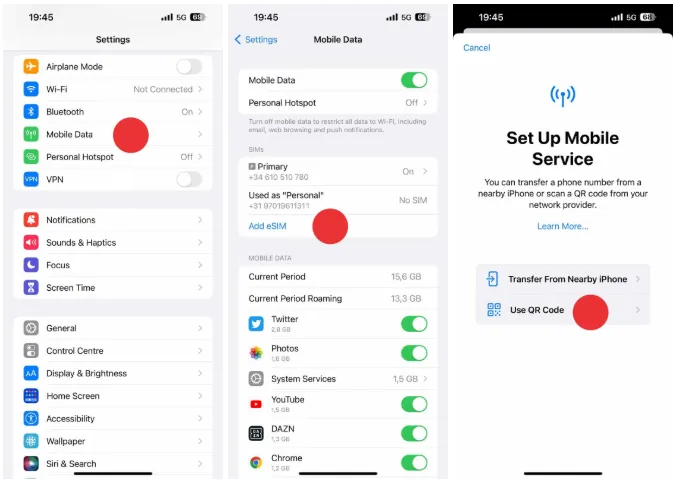
-
Connect to Wi-Fi (essential for activation)
-
Open Settings: Go to Settings > Cellular/Mobile Data
-
Add eSIM:
-
Tap "Add Cellular Plan" or "Add eSIM"
-
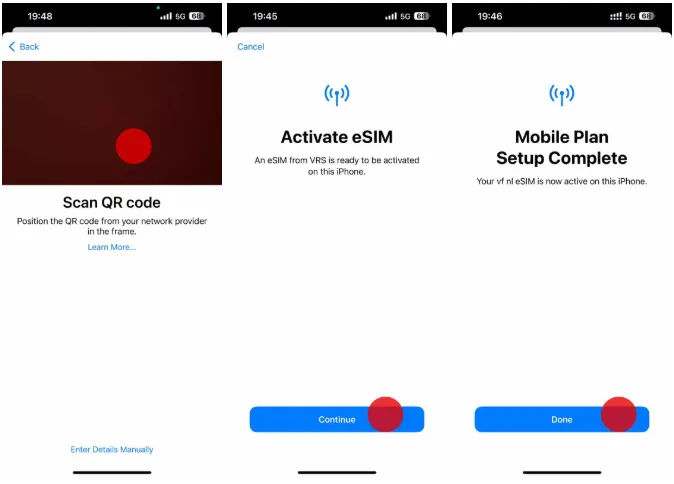
Point your camera at the QR code
-
Alternative: Select "Enter Details Manually" if prompted
-
- Label Your Plan:
-
Choose a label: "Vodafone AU", "Primary", or custom
-
This helps identify lines if using Dual SIM
-
-
Configure Settings:
-
Default Line: Choose which number to use for calls/messages
-
Cellular Data: Select which line uses mobile data
-
Turn On This Line: Ensure it's enabled
-
-
Complete Activation:
-
Wait for "Cellular Plan Activated" message
-
Restart your iPhone
-
🤖 Android Activation
Steps vary by manufacturer (Samsung, Google Pixel, etc.).Here are general android steps:
-
Connect to Wi-Fi
-
Access SIM Settings:
-
Settings > Connections > SIM Manager
-
OR Settings > Network & Internet > Mobile Network
-
Look for "Add eSIM" or "Add Mobile Plan"
-
-
Scan QR Code:
-
Tap "Scan Carrier QR Code"
-
Point camera at your Vodafone QR code
-
-
Manual Entry (if needed):
-
If scanning fails, tap "Enter Code Instead"
-
Input SM-DP+ Address and Activation Code (provided by Vodafone)
-
-
Configure eSIM:
-
Name the profile: "Vodafone Australia"
-
Set as preferred for data/calls if desired
-
Enable the SIM profile
-
Once installed, open your device’s Mobile/Network Settings to make sure the Vodafone eSIM is active.If you have multiple plans/SIMs, set your preferred one for calls, SMS, and data.
>>Check more details
‼️ Important Notes:
-
If you're on prepaid, you usually need to activate on a physical SIM first and then swap to eSIM via the My Vodafone app or Vodafone store.
-
If activation fails or doesn’t prompt automatically, retry manually via device settings or the My Vodafone app.
-
If setup still doesn’t work, a Vodafone store visit or customer support call (e.g., 1300 650 410) can help complete activation.
-
Never delete your eSIM profile from your phone settings unless instructed by support, as you cannot reuse the same QR code once deleted.
-
You can use your eSIM alongside a physical SIM (e.g., keeping your home number active while using a local data plan).
-
Vodafone's famous $5 international roaming works perfectly with eSIM, allowing you to use your Australian plan in over 100 countries.
General eSIM Questions
Can I use my physical SIM and an eSIM at the same time?
Yes. This is called Dual SIM. You can keep your Australian number on the eSIM and put a local physical SIM in the tray when traveling, or use two different Australian numbers (e.g., Work and Personal) on the same phone.
Can I use an eSIM on my Apple Watch?
Yes, via a service called Vodafone NumberSync. It allows your watch to share your phone's number and data plan. It costs an additional $5/month on top of your mobile plan.
Can I reuse my eSIM QR code if I get a new phone?
No. Most Vodafone eSIM QR codes are for one-time use. If you switch phones, you must log in to the My Vodafone app or website and request a SIM Swap to generate a new eSIM profile for the new device.
How do I move my eSIM from an old iPhone to a new one?
Vodafone supports Apple’s eSIM Quick Transfer. During the setup of your new iPhone, place it next to your old one and select "Transfer from nearby iPhone." This moves the service automatically without needing a new QR code.
What happens if I accidentally delete my eSIM profile?
If you delete the profile, your phone will lose all signal. You will need to log in to your account via the My Vodafone app (using Wi-Fi) or visit a Vodafone store to get a replacement eSIM.
Can I get a Vodafone eSIM if I am visiting Australia?
Yes. You can purchase a Prepaid eSIM online before you arrive or at the airport. You will need to provide your passport details for a mandatory identity check before the service can be activated.
My QR code isn't scanning. What should I do?
1. Ensure your phone is connected to Wi-Fi.
2. Check that your phone is unlocked (not restricted to another carrier).
3. Ensure you haven't already used that specific QR code on another device.
4. If it still fails, try entering the SM-DP+ Address and Activation Code manually (these are usually provided in the same email as your QR code).
Who do I contact if my eSIM won't activate?
You can chat with TOBi (Vodafone's AI assistant) 24/7 in the My Vodafone app, or call 1300 650 410 from any phone.