Staying connected on the go has become essential for modern work and travel. With built-in cellular connectivity, today’s laptops no longer rely solely on Wi-Fi or mobile hotspots to get online. More manufacturers are now integrating digital SIM technology directly into their devices, making mobile data access faster, more flexible, and more secure.This guide breaks down which notebook models offer native cellular support in 2026 and explains how to get them connected on both Windows 10 and Windows 11. Whether you’re a frequent traveler, remote worker, or business professional, you’ll find practical setup tips and compatibility insights to help you stay online wherever you are.
What is eSIM in Laptops?
An eSIM in a laptop is a built-in digital SIM that lets you connect to cellular data networks without a physical SIM card, enabling seamless, on-the-go internet access by downloading data plans from various carriers directly to your device, perfect for remote work or travel by avoiding spotty Wi-Fi and phone tethering. Many modern laptops support eSIM for built-in cellular connectivity, with popular brands like Dell, HP (EliteBook, Spectre), Lenovo , Microsoft, and Aceroffering models with this feature.
For a laptop to support eSIM, it must have: A WWAN cellular modem (LTE/4G/5G) installed at the hardware level, and Firmware + driver support in Windows 10 (1703 or later) or Windows 11.⚠️ Note: eSIM support is optional even on models with WWAN — only specific SKUs include the modem and eSIM firmware.
How it works:
-
Embedded: The SIM is a tiny chip soldered onto the laptop's motherboard, not a removable plastic card.
-
Digital Plans: You manage and activate data plans by downloading "profiles" from providers through your laptop's settings (like in Windows Settings > Network & Internet).
-
Flexible Connectivity: Switch between carriers or plans (e.g., work vs. personal, local vs. international) easily from your settings.
Benefits for laptops:
-
Constant Connection: Stay online reliably, crucial for remote workers and travelers.
-
No More Tethering: Reduces battery drain and data usage on your phone.
-
Convenience: Buy and activate data plans instantly in new locations without finding a store for a physical SIM.
Who uses it:
-
Remote Workers: Maintain productivity with consistent internet access anywhere.
-
Travelers: Easily get local data plans in different countries.
-
Professionals: Keep separate plans for business and personal use on one device.
Full List of eSIM-Compatible Laptops
I have created the following table to help you check if your device is eSIM compatible. If you can find your laptop there, you can acquire and use an eSIM card.
|
Brand |
Models |
|
Microsoft
|
Microsoft led the charge with eSIM integration. Most "Pro" models with LTE/5G support eSIM.
|
|
Lenovo
|
Lenovo has the largest variety of eSIM-enabled business machines.
|
|
HP
|
HP integrates eSIM primarily in their Elite and Dragonfly series.
|
|
Dell
|
Dell offers eSIM across most Latitude and Precision cellular models.
|
|
Acer |
|
|
ASUS
|
|
|
Apple
|
|
|
Panasonic
|
|
|
Samsung
|
|






How to check for eSIM on your Windows laptop:
Option A: Windows Settings:
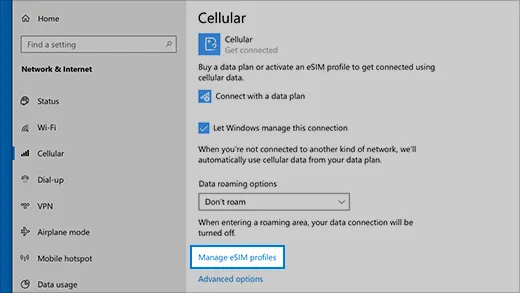
⚠️ Note: Some devices have both an eSIM and physical SIM card. If you don’t see Manage eSIM profiles but you do see Use this SIM for cellular data at the top of the Cellular settings screen, select the other SIM from the drop-down box, and then see if the Manage eSIM profiles link appears.
Option B: Device Manager:
-
-
Search for "Device Manager" in Start Menu.
-
Expand "Network adapters".
-
Look for LTE/5G WWAN adapter with eSIM support.
-
Option C: Manufacturer Specifications:
-
-
Check your laptop's spec sheet for "eSIM" or "Embedded SIM" support.
-
How to Activate eSIM on Windows 10/11?
Unless your organization already provided an eSIM profile on your PC, you must add a profile to connect to the internet using mobile data.Here’s a step-by-step walkthrough.
Step 1: Add an eSIM Profile
Windows 11 Setup Guide
-
Get your QR Code: Purchase a plan from a provider (e.g., Airalo, SimLocal, or your local carrier). They will provide a QR code or activation string.
-
Navigate to Profiles: Go to Settings > Network & internet > Cellular > eSIM profiles.
-
Add Profile: Click Add profile.
-
Activation:
-
Select "Let me enter an activation code I have from my mobile operator".
-
Use your laptop camera to scan the QR code, or manually type the activation code.
-
-
Connect: Once downloaded, select the profile and click Use. Confirm the prompt about data charges.
Windows 10 Setup Guide
-
Open Cellular Settings: Go to Settings > Network & Internet > Cellular.
-
Manage Profiles: Click the link that says Manage eSIM profiles.
-
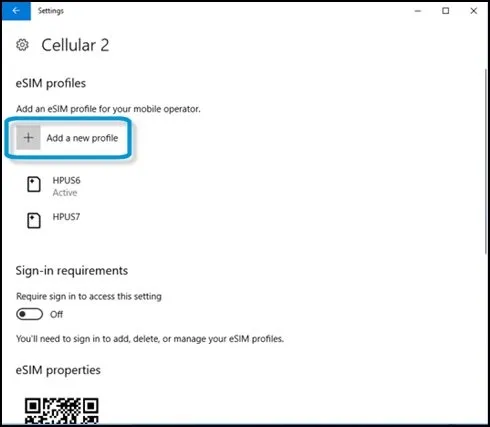
Add New: Select Add a new profile.
-
Download: Choose "Let me enter an activation code..." and scan your provider's QR code.
-
Finalize: After the profile installs, select it and click Use. Windows will disconnect from Wi-Fi and connect to the cellular network.
Step 2: Connect to Cellular Data Using an eSIM Profile
To use your cellular data, you must connect it to an eSIM profile.
-
Open the eSIM profile settings.
-
In Windows 11, search for and open Settings. Select Network & internet, select Cellular, and then select eSIM profiles.
-
In Windows 10, search for and open Settings. Select Network & Internet, select Cellular, and then select Manage eSIM profiles.
-
-
Select a profile, and then select Use.
-
When asked This will use cellular data from your data plan and may incur charges. Do you want to continue?, select Yes.
You are connected to a mobile data network.
Switching Between Profiles
One of the biggest advantages of eSIM-enabled laptops is the ability to store multiple cellular profiles and switch between them without changing physical SIM cards. This is especially useful for travelers, remote workers, or users who alternate between local and international data plans.Here is how to manage and switch between your profiles on Windows.
On Windows 11
-
Go to Settings > Network & internet > Cellular.
-
Click on eSIM profiles.
-
You will see a list of installed profiles. Select the one you want to use and click the Use button.
-
If a different profile is already active, Windows will ask: "This will use cellular data from your data plan... Do you want to continue?" Click Yes.
-
The status of the old profile will change to "Available" and the new one will show "Active."
On Windows 10
-
Go to Settings > Network & Internet > Cellular.
-
Click the link for Manage eSIM profiles.
-
Select the profile you are currently using and click Stop using.
-
Confirm the disconnection, then select the new profile you want to activate and click Use.
Switching Between Physical SIM and eSIM
If your laptop has both a physical Nano-SIM slot and an eSIM (Dual SIM capability), you can toggle between them:
-
Navigate to Settings > Network & internet > Cellular.
-
Look for a dropdown menu labeled "Use this SIM for cellular data."
-
Select either SIM 1 (Physical) or eSIM from the list.
⚠️ Note: On most current Windows laptops, you can only have one active data connection at a time, though both can remain "installed."
🔑 Helpful Tips Before Switching:
-
Only one cellular profile can be active at a time: Windows does not support simultaneous eSIM connections.
-
Wi-Fi takes priority by default: If Wi-Fi is connected, cellular data may stay idle unless Wi-Fi is turned off.
-
Label your profiles clearly: Rename profiles (e.g., “US Data”, “EU Travel eSIM”) to avoid confusion.
-
Check roaming rules: Some profiles stop working outside their supported regions.
How to Delete an eSIM Profile?
If you no longer need an eSIM profile—such as an expired travel plan or an old carrier—you can safely remove it from your laptop in just a few steps.
On Windows 11
-
Go to Settings > Network & internet > Cellular.
-
Click on eSIM profiles.
-
Find the profile you want to remove.
-
Click the Remove button.
-
Confirm by clicking Yes when the warning appears.
On Windows 10
-
Go to Settings > Network & Internet > Cellular.
-
Select Manage eSIM profiles.
-
Select the profile you wish to delete.
-
Select Remove.
-
Select Yes to confirm.
⚠️ Important Notes:
-
Irreversible: Deleting a profile removes it entirely from the device. You will need the original QR code or activation details from your carrier to reinstall it later.
-
Active Profiles: If you are currently using the profile you want to delete, you may need to click "Stop using" first before the Remove button becomes active.
-
Carrier Plans: Deleting the profile from your laptop does not cancel your subscription with the carrier. You must contact your mobile provider separately to stop any recurring billing.
Troubleshooting & Pro-Tips
-
Firmware Updates: If the eSIM option is missing but you know you have a 5G/LTE model, update your WWAN drivers via the manufacturer’s support site (Dell Command Update, Lenovo Vantage, etc.).
-
Carrier Locks: If a laptop was bought through a carrier, their firmware may disable eSIM — contact them if eSIM options don’t appear.
Airalo -
Dual SIM: Most eSIM laptops still have a physical Nano-SIM slot. You can keep your local SIM in the slot and use an eSIM for international travel to avoid roaming fees.
- Storage Limits: Most laptops can store between 5 and 10 eSIM profiles simultaneously, even though only one is active.
-
APN Settings: Some carriers require a manual Access Point Name. If you are "Connected" but have no internet, go to Cellular > Mobile operator settings > Add APN.
-
Battery Tip: Cellular data drains battery faster than Wi-Fi. Set Windows to "Use cellular whenever Wi-Fi is poor" rather than "Always" to save power.
-
Battery Management: Windows 11 now has better power management for cellular. Set your connection to "Metered" in settings to prevent Windows from downloading large updates over your mobile data.
-
App changes: Microsoft is retiring the Mobile Plans app by early 2026 — you may need to manage plans via carrier web portals instead.
eSIM in Laptops: Q & A
Is eSIM available on both Windows 10 and Windows 11?
Yes. eSIM is supported on Windows 10 (version 1703 or later) and Windows 11. Both systems allow you to add, switch, and delete eSIM profiles through Settings → Network & Internet → Cellular.
Can I use multiple eSIM profiles on one laptop?
Yes. Most eSIM-enabled laptops can store multiple eSIM profiles, such as:
-
Local carrier plans
-
International travel eSIMs
-
Business vs personal plans
However, only one eSIM profile can be active at a time.
Can I switch eSIM profiles anytime?
Yes. You can switch profiles anytime in Windows settings as long as:
-
The profile is installed.
-
The plan is still active.
-
The carrier allows usage in your location.
Switching usually takes a few seconds and does not require restarting the laptop.
Can I delete an eSIM profile and reinstall it later?
Usually no.Once an eSIM profile is deleted:
-
It cannot be restored.
-
You’ll need a new QR code or activation code from the carrier.
That’s why it’s recommended to disable a profile instead of deleting it if you might need it again.
Are laptop eSIMs carrier-locked?
It depends:
-
Factory-unlocked laptops usually accept third-party eSIMs
-
Carrier-branded laptops may restrict which eSIM profiles can be installed
If you don’t see the option to add an eSIM, check with the seller or carrier.
Can I use travel eSIMs on laptops?
Yes — as long as the laptop supports eSIM and the carrier allows laptops.Many travel eSIM providers support:
-
Windows laptops
-
Tablets
-
Always-connected PCs
⚠️ Some mobile eSIM plans are phone-only, so always check device compatibility.
Does eSIM work without Wi-Fi?
Yes. eSIM provides independent mobile data, just like a phone hotspot — but without needing your phone.
Can I share eSIM data via hotspot?
Some laptops allow cellular-to-Wi-Fi hotspot sharing, but:
-
Not all WWAN modems support it.
-
Some carriers block hotspot usage.
Check both hardware capability and carrier policy.
Are MacBooks compatible with eSIM?
No.As of 2025, MacBooks do not support built-in eSIM or cellular connectivity.Apple laptops rely on Wi-Fi or iPhone hotspot instead.
Is eSIM data slower than a physical SIM?
No. The speed depends entirely on the laptop's internal modem (4G LTE or 5G) and the carrier's network. There is zero performance difference between a physical SIM and an eSIM.
Can I use my phone's eSIM plan on my laptop?
Generally, no. Most carriers require a "Data Only" or "Laptop/Tablet" plan. While you can sometimes use a phone SIM in a laptop, many carriers will throttle the speed if they detect the SIM is not in a phone.