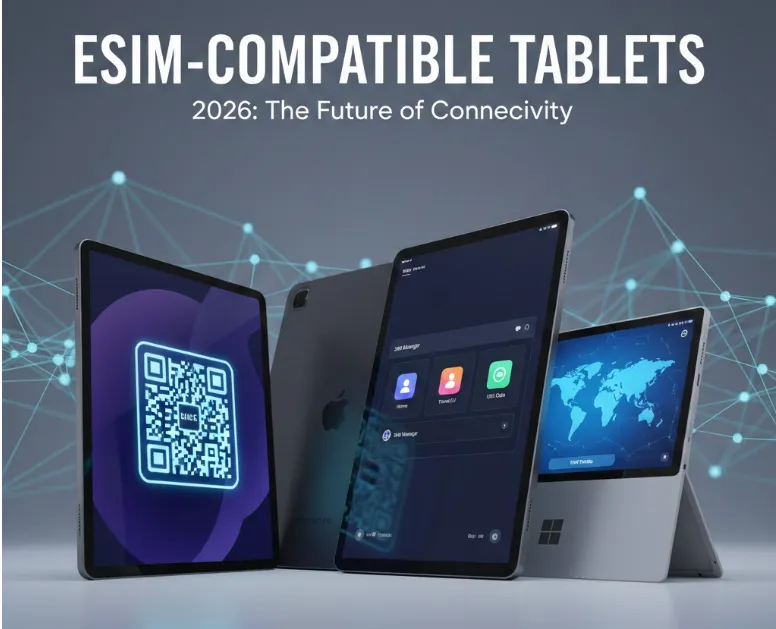
As mobile connectivity becomes essential for both work and play, tablets with built-in eSIM support are redefining on-the-go entertainment and productivity. With the right device, streaming your favorite shows, managing tasks, or staying connected no longer depends on Wi-Fi. This guide not only lists every major eSIM-ready tablet available in 2026—spanning iPad, Android, and Windows ecosystems—along with top budget-friendly choices, but also helps you maximize your investment. We break down the leading streaming platforms, comparing libraries, subscription costs, and overall value to help you pair your perfect tablet with the ideal content service.
WiFi vs Cellular Tablets
There are two ways tablets connect to the internet: via WiFi or Cellular.They do the same thing, essentially, but perform differently depending on your network reliability, coverage in your area, and the capabilities of your mobile device.A cellular tablet can be used whenever and wherever you have cellular service, whereas a WiFi tablet can only be used in a WiFi hotspot.You need a Cellular model to use an eSIM on tablets.
WiFi Tablets
-
Pros: Lower purchase price, no recurring data costs, uses free/shared WiFi.
-
Cons: No internet outside WiFi range, less reliable for navigation/location-based tasks without hotspots.
-
Best For: Kids' tablets, home use, budget-conscious users, or those always near WiFi.
Cellular Tablets (4G/5G)
-
Pros: Always connected on the go, better GPS/location services, dedicated connection prevents phone battery drain, ideal for remote work/travel.
-
Cons: Higher initial cost, requires a paid data plan (SIM/eSIM), adds monthly expense.
-
Best For: Field workers, frequent travelers, remote professionals, or anyone needing internet independence.
eSIM-Compatible Tablets (2026 Full List)
Below is the full list of compatible tablets:
| ✅ Apple iPad |
Recommended iOS version: iOS 16.0 or later Note: iPad models sold in mainland China are not equipped with an eSIM. |
| ✅ Samsung Galaxy Tab |
|
| ✅ Microsoft Surface |
|
| ✅ Other Notable Brands |
|
📝 How to Check & What to Look For?
-
Specifications: Look for "eSIM" or "Embedded SIM" in the official tech specs.
-
Settings Menu: Look for "SIM status" or "eSIM" options in your cellular/network settings.
-
Dial Code: Open the dialer (if available) and type *#06#. If an EID number appears, the device has an embedded SIM.
-
Carrier Compatibility: While eSIM is a global standard, some tablets (especially Android) may be carrier-locked if bought through a specific provider. Unlocked tablets offer the most flexibility.
-
Regional Variations: eSIM support can vary by country (as seen with the iPad 10th gen). Check your local product page.
How to Activate an eSIM on a Tablet
Activating an eSIM on a tablet is generally faster than using a physical SIM, but the process varies slightly depending on whether you are using an iPad, a Samsung Galaxy Tab, or a Windows-based Surface.Regardless of the device, you must be connected to Wi-Fi to download the digital eSIM profile from your carrier.Here’s a clear, step-by-step guide on how to activate an eSIM on a tablet, covering iPad (iPadOS), Android tablets, and Windows tablets. The exact menu names may vary slightly by model and system version, but the process is generally the same.
📱 Before You Begin: What You Need
-
A compatible cellular/5G tablet with eSIM support (see previous guide).
-
A stable Wi-Fi connection (essential for download and activation).
-
An active eSIM data plan from your carrier.
-
Your carrier's activation info: This is typically a QR code (physical or digital) OR an activation code (SM-DP+ Address).
-
Tablet Charging: Ensure your tablet has at least 50% battery.
🍎 How to Activate eSIM on an iPad (iPadOS)
Applies to: iPad Pro, iPad Air, iPad, iPad mini (Cellular models)
There are 3 ways to activate an eSIM on an iPad:
Method A: Scan a QR code(Most Common)
-
Get Ready: Ensure you're connected to Wi-Fi.
-
Go to Settings: Tap Settings > Cellular Data (or Mobile Data).
-
Add Plan: Tap "Add Cellular Plan."
-
Scan Code: Use your iPad's camera to scan the QR code provided by your carrier. (Position the code in the frame.)
-
Install: Tap "Continue" at the bottom right after the code is recognized.
-
Label & Activate: You'll be asked to label the plan (e.g., "Travel Data" or "Work"). Tap "Continue." The plan will download and activate automatically.
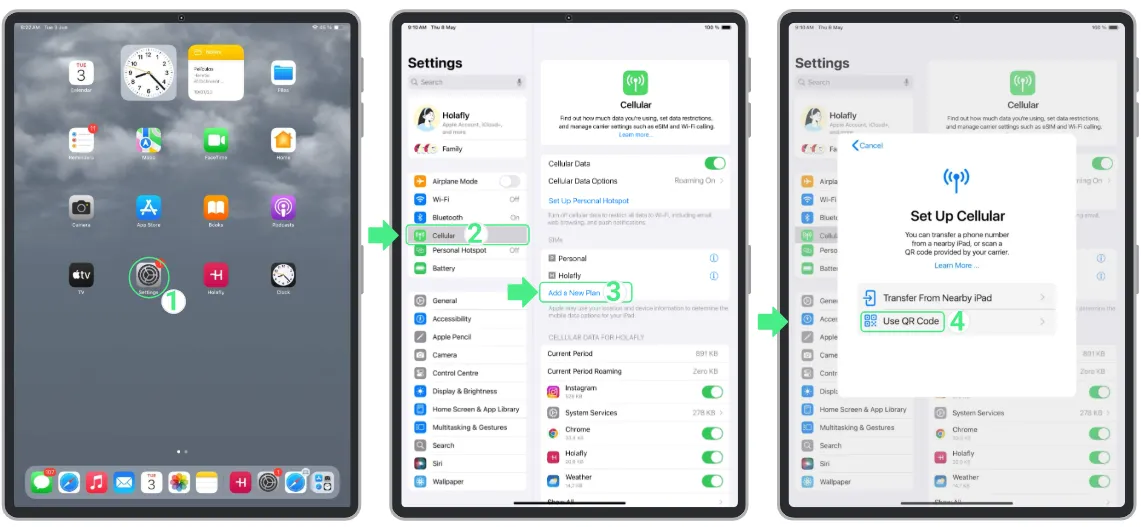
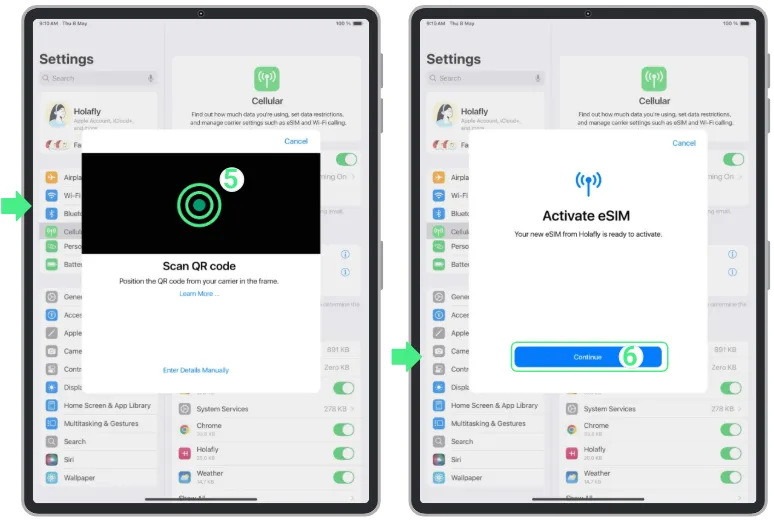
After completing these steps, your eSIM plan should take a few minutes to activate. Once activated, you can enjoy mobile data on your iPad without the hassle of swapping physical SIM cards.
Method B: eSIM Carrier Activation
If you bought the iPad directly from a carrier (like Verizon or T-Mobile), a notification saying "Carrier Cellular Plan Ready to Be Installed" will appear. Simply tap it and follow the prompts.
-
Go to Settings > Cellular Data > Add Cellular Plan.
-
Instead of scanning, look for your carrier's name listed.
-
Tap it and follow the on-screen instructions (you may need to log into your carrier account).
Method C: Manual Entry
-
Go to Settings > Cellular or Mobile Data > Tap on Add a new plan > Select option Use QR Code.
-
Select Enter details manually > Copy and paste the SM-DP address and Activation Code found in the purchase confirmation email > Tap Continue when the Activate eSIM screen appears (this step is just to proceed with the setup, but the eSIM will not be activated yet) > Continue with the setup.
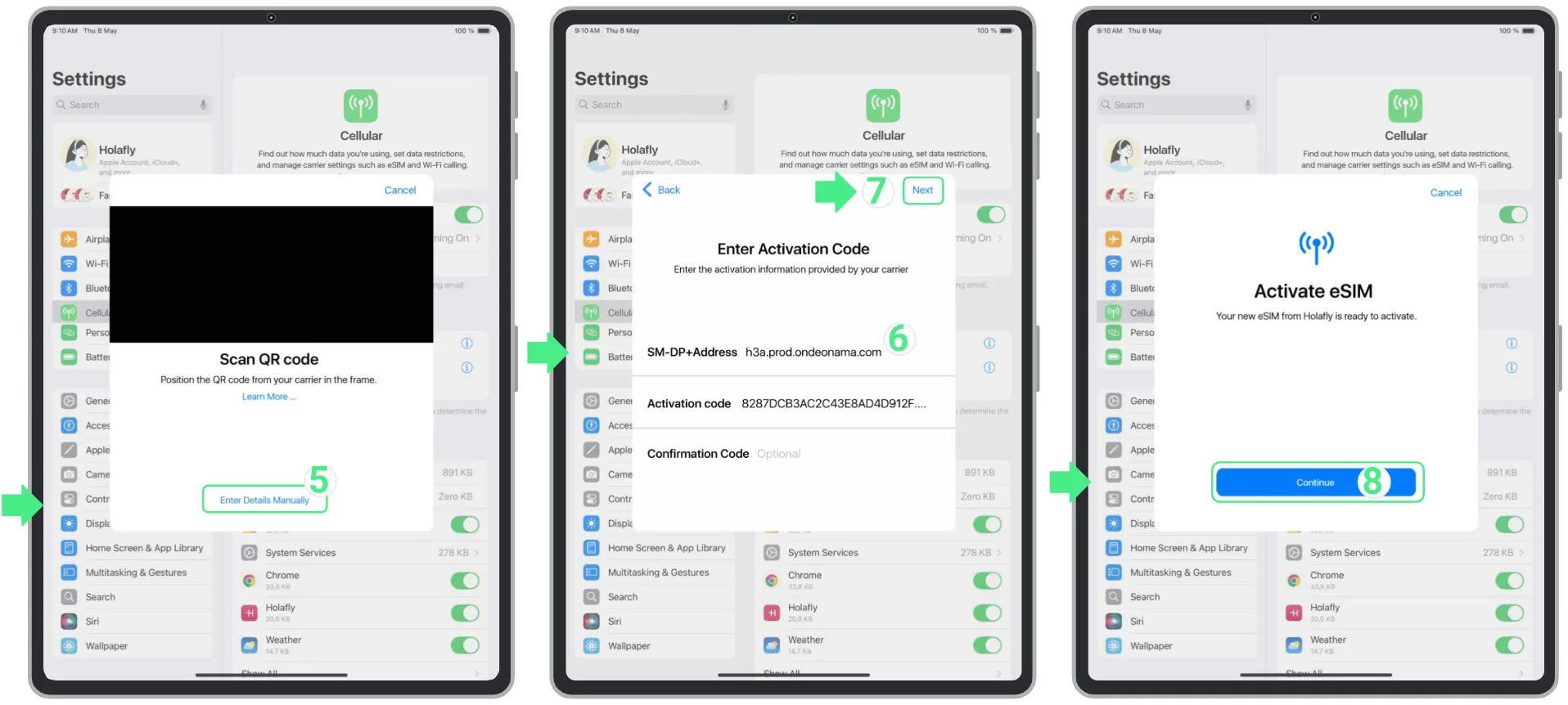
When you see the "Cellular Setup Complete" message, your Holafly eSIM is installed, and you can finish configuring it.
Method D: Transfer from iPhone
If supported by your carrier, you can set up a cellular data plan by adding your iPad to an existing iPhone cellular plan.Make sure your iPad is using the latest version of iPadOS.
-
Open the Settings app.
-
Tap Cellular Data.
-
Tap Join iPhone Plan and follow the onscreen instructions.
If you can't select Join iPhone Plan, make sure that you enabled Wi-Fi on the iPad, and that you're signed in with the same Apple Account on both your iPhone and iPad.
>>Click for more activation details
🤖 How to Activate eSIM on an Android Tablet
Applies to: Samsung Galaxy Tab S series (5G models), other Android tablets with eSIM
Menus vary slightly by manufacturer and Android version, but the path is similar:
-
Go to Settings
-
Tap Connections
-
Select SIM Manager
-
Tap Add eSIM or Add Mobile Plan
-
Choose:
-
Scan QR Code
-
Enter Activation Code
-
-
Confirm and enable the eSIM
-
Set it as Primary or Secondary data SIM if prompted
📓 How to Activate eSIM on a Windows Tablet
Applies to: Microsoft Surface Pro (LTE/5G), Surface Go (Cellular)
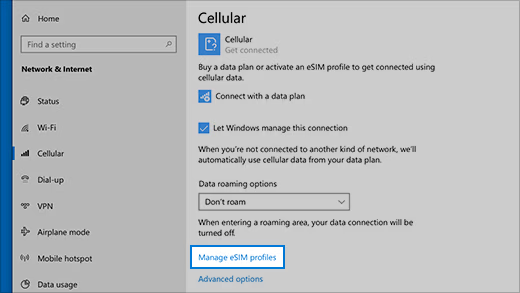
Windows tablets treat eSIMs as "Profiles" within the network settings.Follow these steps to enable eSIM on your Microsoft device:
-
Select Start > Settings > Network & internet > Cellular.
-
Look for the dropdown Use this SIM for cellular data and select eSIM.
-
Tap eSIM profiles > Add profile.
-
Choose Let me enter an activation code I have from my mobile operator and scan the QR code using the Surface's rear camera.
-
Click Download, then Close. You may need to click Use on the new profile to connect.
Troubleshooting Common eSIM Activation Problems
|
Problem |
Likely Solution |
|
QR code won't scan. |
Ensure good lighting, clean camera lens. Try manual entry of the details instead. |
|
"Cannot download eSIM" / "Activation failed." |
1. Check Wi-Fi connection. 2. Restart your tablet. 3. Ensure you haven't reached the eSIM profile limit (usually 5+). |
|
No cellular data after activation. |
1. Go to Settings > Cellular and ensure the eSIM line is turned ON. 2. Select network manually (especially for travel eSIMs). 3. Check APN settings (get correct APN from your carrier). |
|
"Device not compatible" error. |
You may have a Wi-Fi-only tablet model, or the eSIM is carrier-locked. Ensure you bought the cellular model and it's unlocked. |
|
Can't make/receive calls (on iPad). |
Ensure "Cellular Data" is set to the eSIM line and "Default Voice Line" (in Settings > Cellular) is selected correctly. |
|
Carrier not supported. |
Confirm tablet is unlocked. |
|
No signal after activation. |
Go to your cellular settings and ensure Data Roaming is turned ON (especially for travel eSIMs like Airalo or Holafly). |
Top Budget Picks with eSIM
If you want cellular connectivity without the $1,000 price tag, these are the best value options in 2026:
|
Tablet |
Approx. Price |
Why it’s a Top Pick |
|
$429.99 - $499.99 |
Best Android value; includes S-Pen and great 5G support. |
|
|
$349 - $429 |
The cheapest way into the Apple ecosystem with eSIM. |
|
|
$249 - $299 |
Incredible screen and battery life for the price (Global models). |
|
|
$499+ |
The best "budget" Windows tablet for work and travel. |
‼️ Final Pro Tip:
When in doubt, buy an iPad. Apple has the most consistent eSIM implementation across all carriers and regions. For Android, research your specific model number thoroughly before purchasing.
General FAQs
Q: Does every tablet have an eSIM?
A: No. Only "Wi-Fi + Cellular" models support eSIM. If you purchased a "Wi-Fi Only" model, it lacks the necessary antenna and internal chip to connect to cellular networks.
Q: Can I use a physical SIM and an eSIM at the same time?
A: Yes, on most models. This is called Dual SIM Dual Standby (DSDS). You can keep your home physical SIM for text/calls and use an eSIM for cheap local data while traveling.Note: Newer iPads (M4/M5) and some 2026 Surface Pro models are eSIM-only and do not have a physical slot.
Q: How many eSIMs can my tablet hold?
A: Most modern tablets (iPad Pro, Galaxy Tab S11) can store 5 to 10 profiles, but typically only one or two can be "Active" (connected to a network) at any given time.
Q: Do I need Wi-Fi to activate my eSIM?
A: Yes. You need an internet connection to download the digital profile from your carrier’s server. Once activated, the tablet uses the cellular network and no longer requires Wi-Fi.
Q: What if I lose my QR code?
A: Most carriers allow you to log into their app or website to view your QR code again. If you bought a travel eSIM (like Airalo), the code is usually stored in your account history.
Q: Can I transfer my eSIM to a new tablet?
A: It depends on the brand.
-
Apple: Uses "eSIM Quick Transfer" to move plans between iPads.
-
Android/Windows: Usually requires you to delete the profile on the old device and scan a new QR code on the new one.
Q: Why is my eSIM not connecting to 5G?
A: Check two things:
-
Ensure Data Roaming is turned ON in your settings (required for most travel eSIMs).
-
Verify that your specific eSIM plan supports 5G in your current location.
Q: What's the difference between eSIM for tablets vs. smartphones?
A: The technology is identical. The main difference is in carrier plans (data-only vs. voice/data) and sometimes in dual SIM functionality, which is more robust on smartphones.
Q: Does removing/deleting an eSIM profile cancel my plan?
A: NO. Deleting the profile from your device only removes it from that tablet. You must contact your carrier/eSIM provider to cancel the plan and stop billing.
Q: Can I convert my physical SIM to eSIM on the same tablet?
A: Sometimes. This depends on your carrier's policy, not your tablet. Contact your carrier to ask if they support "SIM to eSIM transfer" for tablets.