Whether you’re visiting Australia for a short trip or staying long term, having fast and reliable mobile service makes everything easier—from maps and rideshares to social media and online payments. As Australia's largest network continues to lead the digital transition, switching to a Telstra digital SIM has never been easier. Telstra offers strong coverage and fast data speeds across cities and remote areas alike. Using a digital SIM makes setup easier than ever—no physical card, no waiting, just instant access on your device.In this guide, you’ll learn how to obtain a Telstra-compatible eSIM, set it up on your phone, move your number between devices, and choose a prepaid option that fits your usage and budget. If you’re looking for a smooth, flexible mobile experience in Australia, this article will walk you through everything step by step.
What Is a Telstra eSIM & Why Use It?
A Telstra eSIM is a digital SIM card built directly into your smartphone, tablet, or smartwatch. Instead of inserting a physical plastic SIM, you download your Telstra mobile plan onto your device by scanning a QR code or activating it through the My Telstra app.Because the eSIM is embedded in the device, you can connect to Telstra’s network without swapping SIM cards. It works just like a traditional SIM, allowing you to make calls, send texts, and use mobile data — but with faster setup and more flexibility.Most modern devices, including recent iPhone, Samsung Galaxy, Google Pixel, and iPad models, support eSIM, making it a convenient option for users in Australia who want a simpler and more modern way to stay connected.
Why Use a Telstra eSIM?
Using a Telstra eSIM offers several practical advantages over a physical SIM card:
✅ Instant Connectivity
The biggest advantage is speed. You don't have to wait for a SIM card to arrive in the mail or visit a Telstra store. You can buy a plan online and be connected to the network in minutes by downloading the profile through the My Telstra app.
✅ Easy Switching & Management
With eSIM, you can change plans, replace a SIM, or move your number to a new phone digitally. No more handling tiny plastic cards or visiting a store.
-
SIM replacement made easy: Lose your phone? New eSIM can be issued instantly without waiting for mail.
-
Switch devices seamlessly: Move your number between devices in minutes (great when upgrading phones).
✅ Two Numbers, One Phone (Dual SIM)
An eSIM allows you to have two active phone numbers on a single device.
-
Work & Personal: Run your business line and private line on one phone.
-
Travel: Keep your Telstra eSIM active for calls/texts from home while using a cheap physical SIM (or a second eSIM) for local data while overseas.
✅ Enhanced Security
-
Cannot be stolen: A thief cannot "pop out" your SIM card to put it in another phone to bypass Two-Factor Authentication (2FA) for your bank or social accounts.
-
Harder to Clone: The digital profile is encrypted and unique to your specific device hardware.
✅ Environmental & Practical Benefits
-
No plastic waste: Eliminate physical SIM cards and packaging.
-
No shipping: Instant delivery via email/app.
-
Space-saving: Modern devices can be made smaller/thinner without SIM trays.
✅ Ideal for Specific User Types
-
Frequent travelers: Between Australian states or internationally.
-
Digital nomads/remote workers: Needing reliable Australian connectivity.
-
Backpackers/tourists: Exploring regional Australia where Telstra has best coverage.
-
Students studying abroad in Australia.
-
Business travelers making short trips to Australia.
💡 In Short: A Telstra eSIM gives you faster setup, flexible plan management, dual-number support, and better security — all while keeping your device clutter-free. It’s a smart choice for modern users who want seamless mobile connectivity on Australia’s largest network.
Phones Compatible with Telstra eSIM
Most devices released after 2020 are eSIM compatible, however, if the device was purchased overseas the eSIM may not work in Australia.Many phones also have dual SIM capacity and can support two physical SIMs and/or eSIMs. Here’s a current list of devices that are compatible with Telstra eSIM — meaning they can use a digital SIM profile on the Telstra network (as long as the specific model sold supports eSIM and isn’t region-locked):
|
Brand |
Supported Models |
|
Apple |
All models from iPhone XR/XS onwards (including iPhone 11, 12, 13, 14, 15, 16, and the new iPhone 17 series). Also includes iPhone SE (2nd gen & later). |
|
Samsung |
|
|
|
All models from Pixel 3a onwards (including Pixel 4, 5, 6, 7, 8, 9, and the Pixel 10). |
|
Other |
|
>>Check eSIM Compatible Phones list
⚠️Overseas Models: If you bought your phone in Mainland China, Hong Kong, or Macau, it may have two physical SIM slots but no eSIM support, even if it is a newer iPhone or Samsung model.
⁉️How to verify your device:
A device will only have an EID, or Embedded Identity Document, if it supports eSIM. The EID serial number is usually printed on the box of your device.You can also find your EID:
-
On a smartphone, by dialling *#06#
-
On a Tablet, in Settings > About.
Telstra eSIM Plans & Pricing
Telstra has streamlined its offerings so that almost all mobile plans—including Upfront, Pre-Paid, and Data-only plans—are eSIM compatible.Below is a breakdown of the current Telstra eSIM plans available as of January 2026.
1. Upfront Mobile Plans (Postpaid)
These are monthly "no lock-in" plans. They include uncapped 5G speeds and no excess data charges (speeds are slowed to 1.5Mbps if you exceed your allowance).
|
Plan Name |
Monthly Data |
Monthly Cost |
Key Features |
|
Basic |
50 GB |
$70 |
Australia's largest 5G network, 30 mins Intl. calls. |
|
Essential |
180 GB |
$80 |
Most popular; includes data sharing with up to 20 plans. |
|
Premium |
300 GB |
$99 |
Includes 4K streaming support and higher data priority. |
*Prices may vary based on active promotions. Discounts of $10/mth for the first 12 months are common for new eSIM activations.
2. Pre-Paid Mobile Plans
Pre-paid eSIMs are ideal if you want to avoid credit checks or are visiting Australia. Many of these currently offer "eSIM Only" bonuses.
-
7-Day Starter: $13 for 5GB (Includes 2GB bonus for first 3 recharges).
-
28-Day Plans:
-
$39 Plan: 45GB total (15GB + 30GB bonus for first 3 months).
-
$49 Plan: 65GB total (25GB + 40GB bonus).
-
$59 Plan: 85GB total. Uncapped 5G speeds (unlike lower tiers capped at 150Mbps).
-
$69 Plan: 110GB total. Uncapped 5G speeds (unlike lower tiers capped at 150Mbps).
-
-
Long Life (6–12 Months):
-
$180 Plan: 140GB for 6 months.
-
$350 Plan: 300GB for 12 months.
-
3. Data-Only eSIM Plans
Designed for iPads, tablets, and mobile hotspots.
-
Small: 30 GB for $23/mth.
-
Medium: 100 GB for $58/mth.
⁉️Which plan should you choose?
-
Best for Travel: Use a Pre-Paid 28-day plan. You can activate it via the My Telstra app before you even land in Australia.
-
Best for Families: Upfront Essential, as it allows you to "Data Gift" or share data with your kids' or partners' devices.
-
Best for Smartwatches: You need an Upfront Plan to use "Telstra One Number" ($5/mth) to sync your eSIM phone number to an Apple or Galaxy Watch.
How to Get a Telstra eSIM?
Getting a Telstra eSIM is a fully digital process that can be completed in under 10 minutes. The method depends on whether you are a brand-new customer or already have a Telstra service.
Method 1: New Customers (Buying a New Plan Online)
You can purchase and activate an eSIM without ever stepping into a store or waiting for the mail.Visit Telstra’s website or the My Telstra app to select an eSIM plan that matches your needs, head to checkout, and follow the instructions to complete your purchase.
1️⃣Purchase Options:
-
Before You Arrive (Recommended): Buy a Telstra eSIM online from official retailers. You'll receive a QR code via email immediately.
-
Official Source: Telstra website.
-
Trusted Retailers: Sites like Airalo and SimOptions also sell Telstra network eSIMs (often under names like "Australia" or "Truphone"). These can be easier for international customers to purchase.
-
-
On Arrival: Visit a Telstra store, an airport kiosk, or authorized retailer (like news agencies) to purchase a prepaid SIM pack that includes an eSIM QR code.
2️⃣Buying Process:
-
Visit the Telstra Website: Go to the Pre-Paid or Upfront Mobile page.
-
Select Your Plan: Choose the data amount that fits your needs.
-
Choose "eSIM" at Checkout: When asked for a SIM type, select eSIM. (Note: In 2026, many plans offer "eSIM-only" discounts).
-
Verify Identity: You will need an Australian ID (Driver's License, Medicare, or Passport) or an International Passport to complete the legal "Know Your Customer" (KYC) check.
-
Install via the My Telstra App:
-
Download the My Telstra app on the phone you want the eSIM on.
-
Go to Get Help > My Orders and tap Activate your SIM.
-
Ensure you are connected to Wi-Fi and follow the prompts to download the profile.
-
Method 2: Existing Customers (Switching from Physical to eSIM)
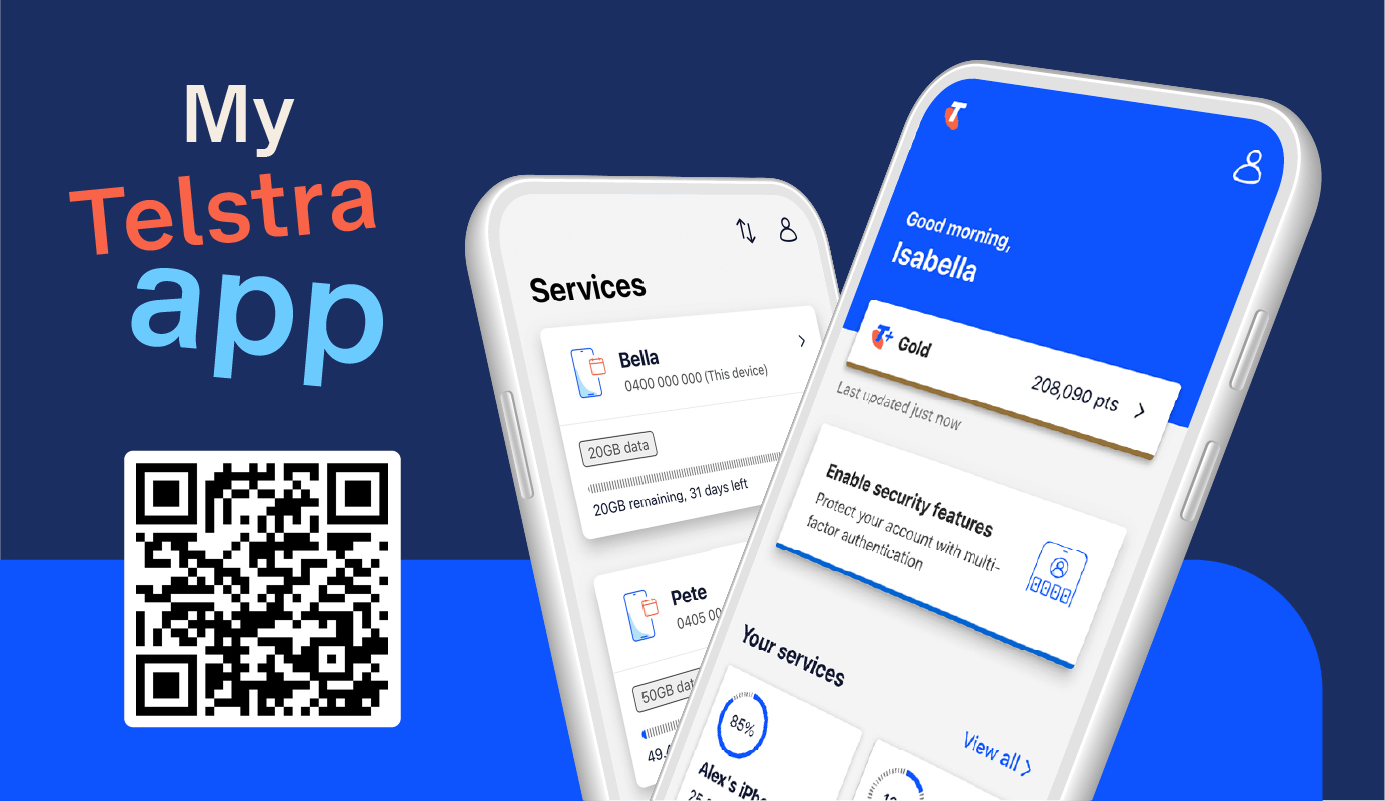
You can also transfer your physical Telstra SIM to an eSIM anytime without extra charges or changes to your existing number in the My Telstra app. Head to Services and follow the step by step instructions.
-
Open the My Telstra App: Ensure you are using the device that you want to hold the eSIM.
-
Navigate to Services: Tap the Services tab and select the mobile number you want to convert.
-
Transfer or Restore: Scroll down and select Transfer or restore eSIM (sometimes listed as "Setup or manage eSIM").
-
Confirm the Switch: Tap Convert to eSIM.
-
Finalize: Follow the on-screen instructions. Your physical SIM will stop working as soon as the eSIM profile is successfully downloaded to your phone.
Method 3: In-Store (Personal Assistance)
f you prefer a face-to-face setup:
-
Visit any Telstra Store with your phone and a valid ID.
-
A consultant can generate a QR Code for you.
-
Scan the QR code via your phone's settings (Settings > Mobile/Cellular > Add eSIM) to download the profile manually.
What you'll need in store:
① A device that supports eSIM
② Valid ID and/or bank information
③ Proof of address
④ Telstra account details (if you’re an existing customer)
How to Set Up a Telstra eSIM?
Setting up a Telstra eSIM is quick and doesn’t require a physical SIM card. As long as your device supports eSIM and you have a stable Wi-Fi connection, you can activate your Telstra service in just a few minutes using a QR code, confirmation code, or the My Telstra app.
‼️The Preparation:
-
Stable Wi-Fi: You must be connected to a Wi-Fi network. Your mobile data will cut out during the installation, and if you aren't on Wi-Fi, the download will fail.
-
Charge Your Device: Ensure you have at least 20% battery.
-
Latest App: Download or update the My Telstra app from the App Store or Google Play Store.
1. Set Up Telstra eSIM with a QR Code
This is the most common activation method.Connect your device to WiFi and find the QR code in your order confirmation. Scan the QR code with your device’s camera and follow the prompts to finish setting up the eSIM. The QR code only works once, so ensure you don’t delete the eSIM once installed.
On iPhone
-
Connect to Wi-Fi.
-
Go to Settings → Mobile → Add eSIM.
-
Tap Use QR Code.
-
Scan the Telstra QR code.
-
Follow the on-screen steps to finish setup.
On Android (Samsung / Pixel):
-
Connect to Wi-Fi.
-
Open Settings → Connections / Network & Internet.
-
Tap SIM Manager → Add eSIM or Add Mobile Plan.
-
Scan the QR code.
-
Confirm and install the profile.
Once installed, your phone will connect to the Telstra network automatically.
2. Use Carrier Activation to Set Up
If you've requested an eSIM with your new device on a Telstra Upfront plan, you only have to set it up and connect to WiFi. Then, follow the on-screen instructions and enter the 6-digit confirmation to download your eSIM.
Apple iOS carrier activation
Follow these steps to download your eSIM profile on an Apple iPhone, whether your device is new or already set up.
To download your eSIM with carrier activation on a new Apple iPhone:
-
Set your device up and connect to Wi-Fi
-
Follow the prompts to download your eSIM
-
Enter the 6-digit confirmation code we sent you
-
Your eSIM will be downloaded.
To download your eSIM with carrier activation on an active Apple iPhone:
-
Go to your device settings
-
Select Set Up Mobile (If you don’t see Set Up Mobile, select Mobile then Add eSIM)
-
Follow the prompts to download your eSIM
-
Enter the 6-digit confirmation code we sent you
-
Your eSIM will be downloaded.
Google Pixel and Android carrier activation
To download your eSIM with carrier activation on a new Google Pixel or Android device:
-
Set your device up and connect to Wi-Fi
-
Follow the prompts to download your eSIM
-
Enter the 6-digit confirmation code we sent you
-
Your eSIM will be downloaded.
To download your eSIM with carrier activation on an active Google Pixel or Android device:
-
Go to your device settings
-
Select Network and Internet
-
Go to SIMs, then Add eSIM
-
Follow the prompts to download your eSIM
-
Enter the 6-digit confirmation code we sent you
-
Your eSIM will be downloaded.
3. Set Up via the My Telstra App
You can also download your eSIM directly from Telstra.
-
Install and open the My Telstra app.
-
Sign in with your Telstra ID.
-
Tap Services and select your mobile number.
-
Choose Download eSIM profile.
-
Follow the prompts to install.
This is ideal if you lost your QR code or are switching from a physical SIM to eSIM.
🔺After Installation:
Once your Telstra eSIM is active, you can:
-
Set it as primary or secondary line.
-
Enable mobile data switching.
-
Rename your line (e.g., Work, Travel, Personal).
-
Turn the eSIM on/off in SIM settings.
🔺Troubleshooting Common Setup Issues
-
"No Service" after download: It can take between 10 minutes and 4 hours for the network to fully activate. Toggling Aeroplane Mode on and off usually helps speed this up.
-
App error "Try again later": You are limited to 4 transfer attempts in 24 hours. If you hit this limit, you must wait until the cooldown expires.
-
Accidental Deletion: If you accidentally delete the eSIM profile from your phone settings, go back to the My Telstra app and select Restore eSIM. Do not try to scan the old QR code again, as they are typically one-use only.
Important General Information
-
Dual SIM/Dual Standby: With an eSIM, you can use Dual SIM functionality. Your Telstra line can be set as either the primary or secondary line for calls, texts, and data.
-
Managing Your eSIM: You can manage your plan, top up, and view usage through the My Telstra app or the online portal.
-
Backup Your eSIM QR Code: Once issued, save a screenshot of your eSIM QR code. You may need it if you reset your phone or need to reinstall the profile. Do not share this QR code.
-
Support: If you run into issues:
-
Telstra General Support: 13 22 00 (From within Australia)
-
International Visitors: +61 439 12 3456 (From outside Australia)
-
Prepaid Support: 1300 00 1234
-
Use Telstra's extensive online help and community forums.
-